Study tools in the standalone material reader can serve different purposes: ask AI about a concept, consult another file, inspect a mind map, or review flashcards. The choices share one menu. Selecting a tool does not automatically generate every kind of content.
Watch the walkthrough
This video is currently unavailable. Open video in a new window
Open the tools menu
Open a file from your materials and select Triple view at the bottom to show study tools. Select the dropdown arrow beside AI chat or the current tool’s name. The menu contains AI chat, other materials, mind map, flashcards, and quiz. Quiz is currently marked as coming later and is not an available generation action.
Choose the tool you need
- Select AI chat and enter a question. You can also drag a screenshot selected from the main courseware into this composer, add instructions, and send.
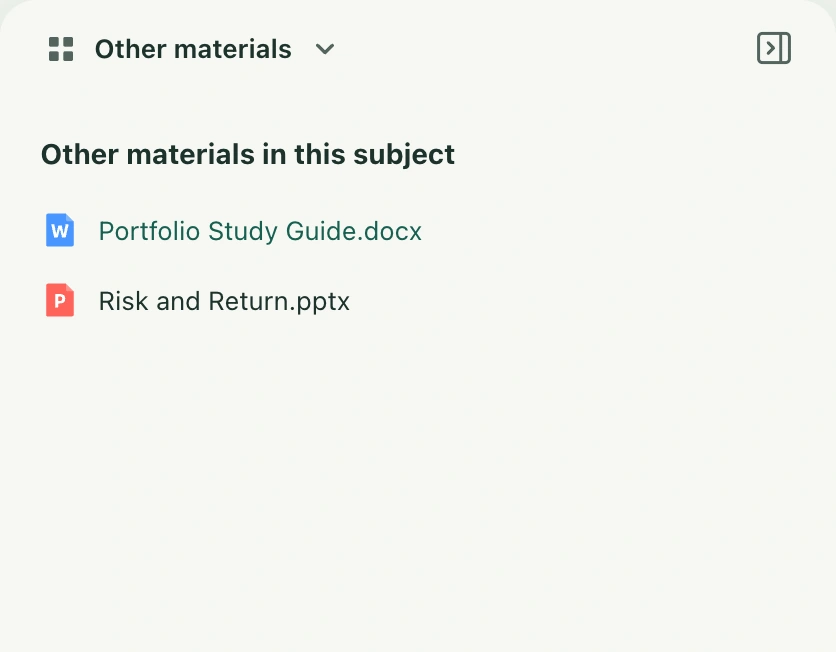
- Select the other-materials option to see other files in this subject. The list shows actual format icons and filenames. Select a file to read it in the tools area while the main courseware stays in place.
- While comparing files, the top shows the opened filename and a back button. Return to the other-materials list to choose another file. This is not a search across all subjects.
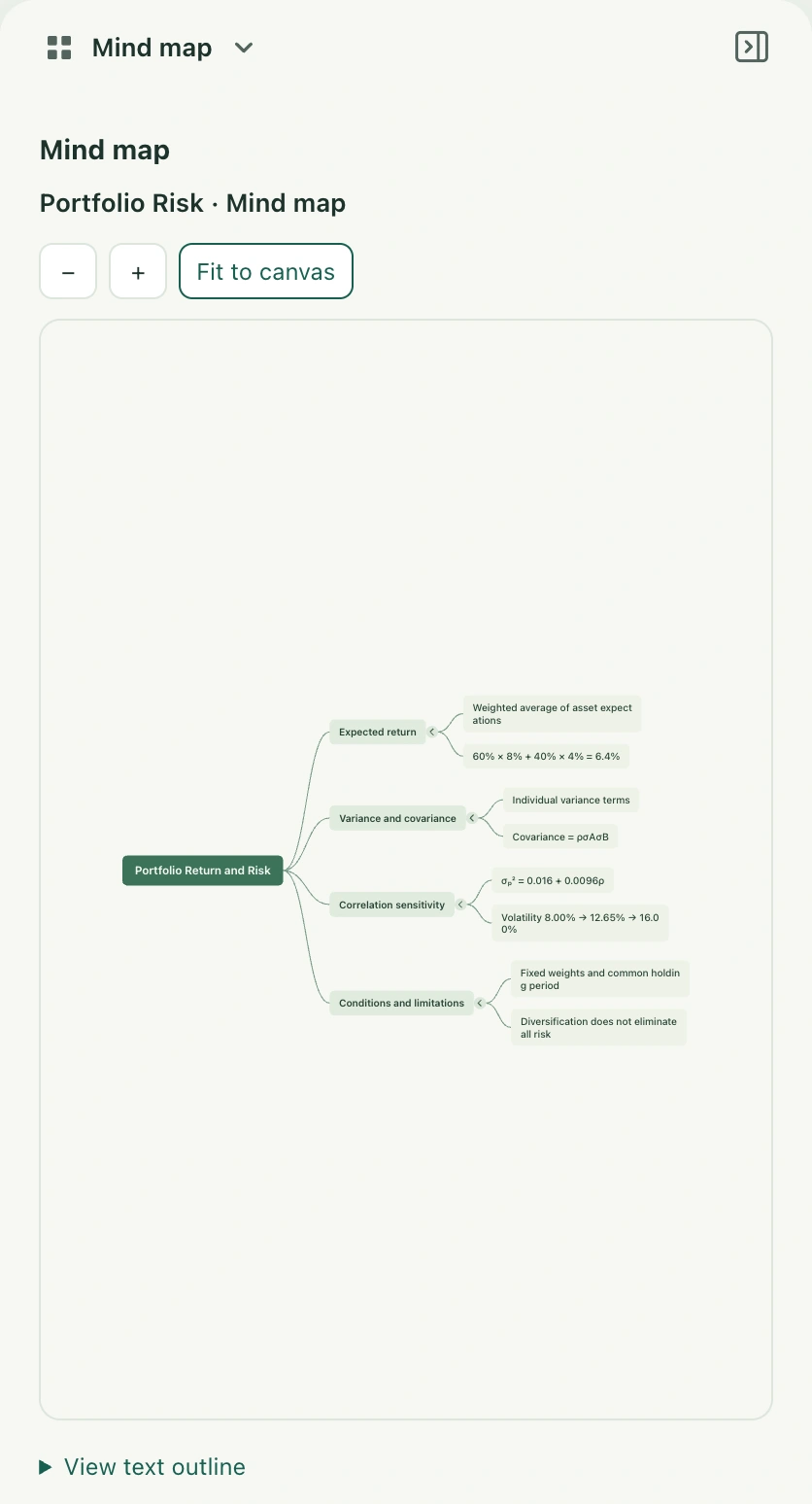
- Select Mind map for this material’s map. If none exists, use Generate mind map. With an existing map, view its canvas or text outline.
- Select Flashcards to load existing decks, then use the view action to review. To add a deck, choose the action to create flashcards from this material and confirm in the creation flow. Refresh the flashcard list if it has not updated.
Switching and saving
Switching tools retains the main courseware and file-note context. It does not add text from other materials to your notes or save AI replies as notes. Check file-note edits through their normal automatic save status. Wait for a mind map or flashcard deck to finish generating and saving before treating it as available review material.
Why a list may be empty
Other materials includes eligible standalone files in the same subject. If none exist, it shows an empty state. Mind maps and flashcards have their own starting actions when nothing has been generated. Follow a panel’s retry instructions after a loading error instead of repeatedly generating. Classroom materials also includes Smart Notes, mind map, flashcard, and lesson-minutes controls, some of which start generation or open settings. Those classroom actions differ from this reader’s tool-selection menu.