The standalone material reader brings courseware, file notes, and study tools into one workspace. Read the original by itself, add notes, or bring in AI and other tools when you need them. Switching layouts changes which areas are visible; it does not generate new notes or replace the current file.
Watch the walkthrough
This video is currently unavailable. Open video in a new window
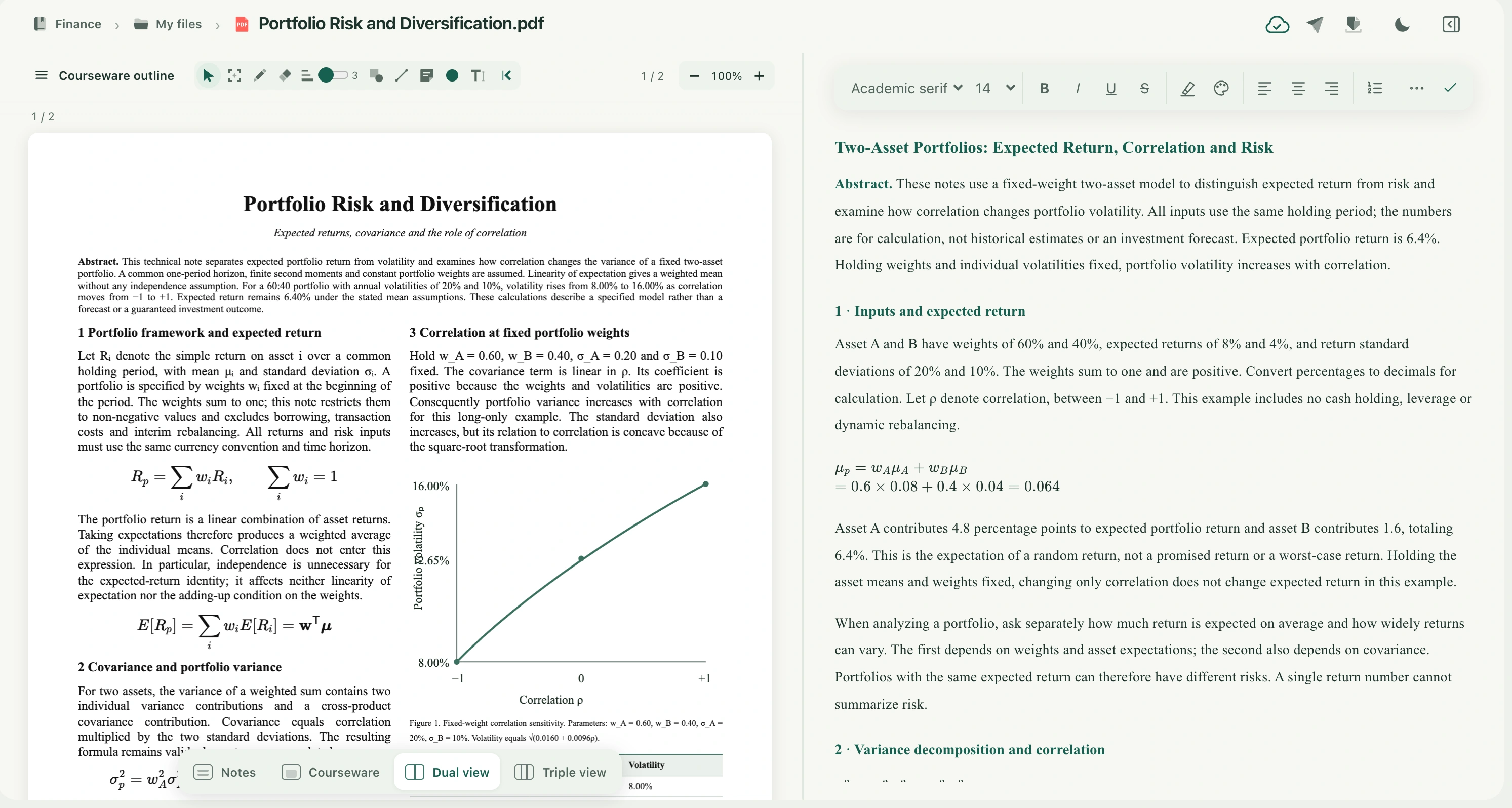
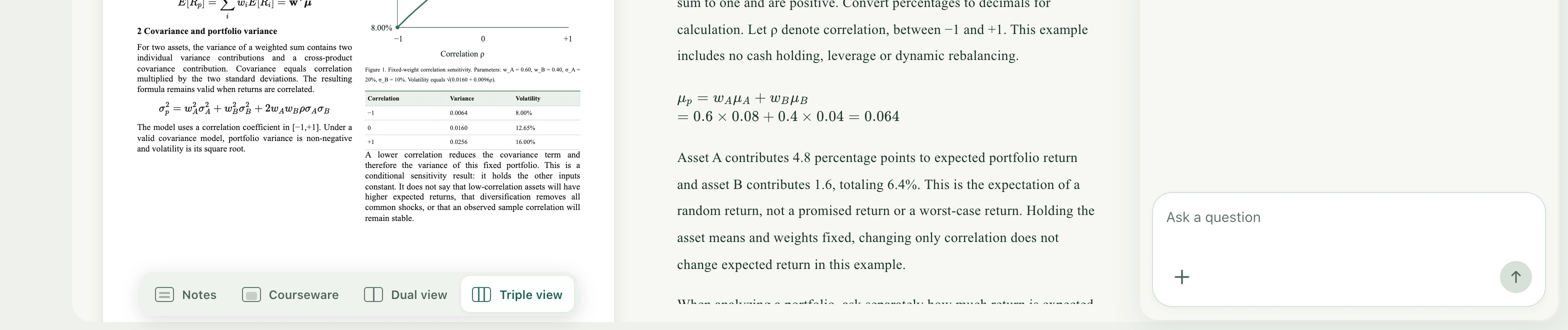
Find the layout controls
Open the file you want to read from the materials list. Find Notes, Courseware, Dual view, and Triple view at the bottom. These instructions concern the standalone file workspace. Captions, question explanations, and My notes in the classroom belong to that classroom interface and are not substitutes for file notes.
Choose a layout for your task
- Select Courseware to focus on the original. This is useful for enlarging formulas, inspecting images, or reading a paper continuously.
- Select Notes to focus on organizing notes for the current file. This emphasizes the editor without clearing courseware content.
- Select Dual view to read and write together. Courseware and file notes appear alongside one another for summarizing points or dragging courseware screenshots into notes.
- Select Triple view to ask questions or consult other materials at the same time. It adds study tools beside courseware and notes. Choose a specific tool from the menu at the top of that area.
- In a wide desktop window, drag the dividers to adjust widths. Double-click a divider to reset it. Focus a divider and use the left or right arrow key for smaller adjustments.
What stays when you switch
The layout uses the same reader, file, and current page instead of reopening the PDF for each switch. Notes remain the same file notes and edits keep saving automatically; choosing a layout is not a save confirmation. If the Notes-only layout hides courseware, an unfinished courseware selection is cancelled. Show the courseware again to make a new selection.
If the screen is narrow or a toolbar is missing
Small windows use a compact layout, so Triple view does not force three side-by-side columns on every device. Enlarge the window or focus on Courseware or Notes for the current task. Reopen a collapsed study-tools area using its page control, or select Triple view again. Some note tools move into More tools when space is limited; their functions remain available there.