Lesson minutes help you review what a class covered, which tasks were explicitly assigned, and which questions remain unresolved. They organize topics, explanations, and discussion from saved class content, with sources you can check. Their scope depends on what was actually saved. Full courseware, board content, images, and live demonstrations may not all be included.
Watch the walkthrough
This video is currently unavailable. Open video in a new window
Save the class content first
When you finish recording your own real class, select End recording. Wait for the last audio, captions, and other content to save. Keep the page open while it says the final content is being saved. Only leave when the interface confirms that the background task has taken over, generation is scheduled, or minutes are being prepared. Return to the same class later to see the result.
Read the lesson minutes
- Select Lesson minutes in the study tools under Lesson materials. If a minutes file already appears in the list, open its file row instead.
- Read the status. Waiting for class materials means the background task is waiting for usable sources. Lesson minutes scheduled or Preparing lesson minutes means it is processing in the background. If there is no existing task and the class has ended, use Generate lesson minutes when that action appears.
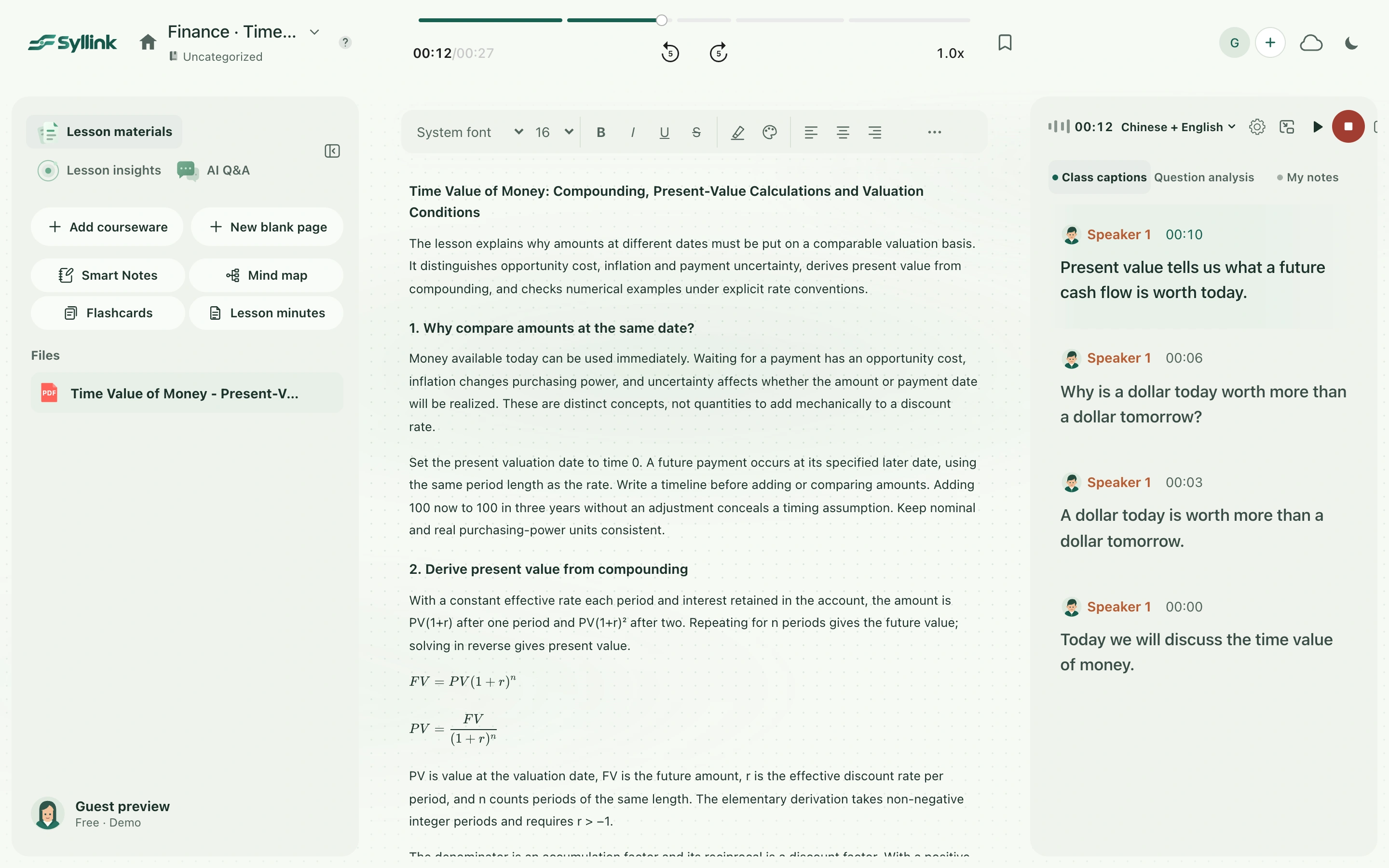
- Once generation finishes, read the topics, sections, explicit tasks and follow-ups, and unresolved questions in the central document. Owners and deadlines depend on what the class actually provided.
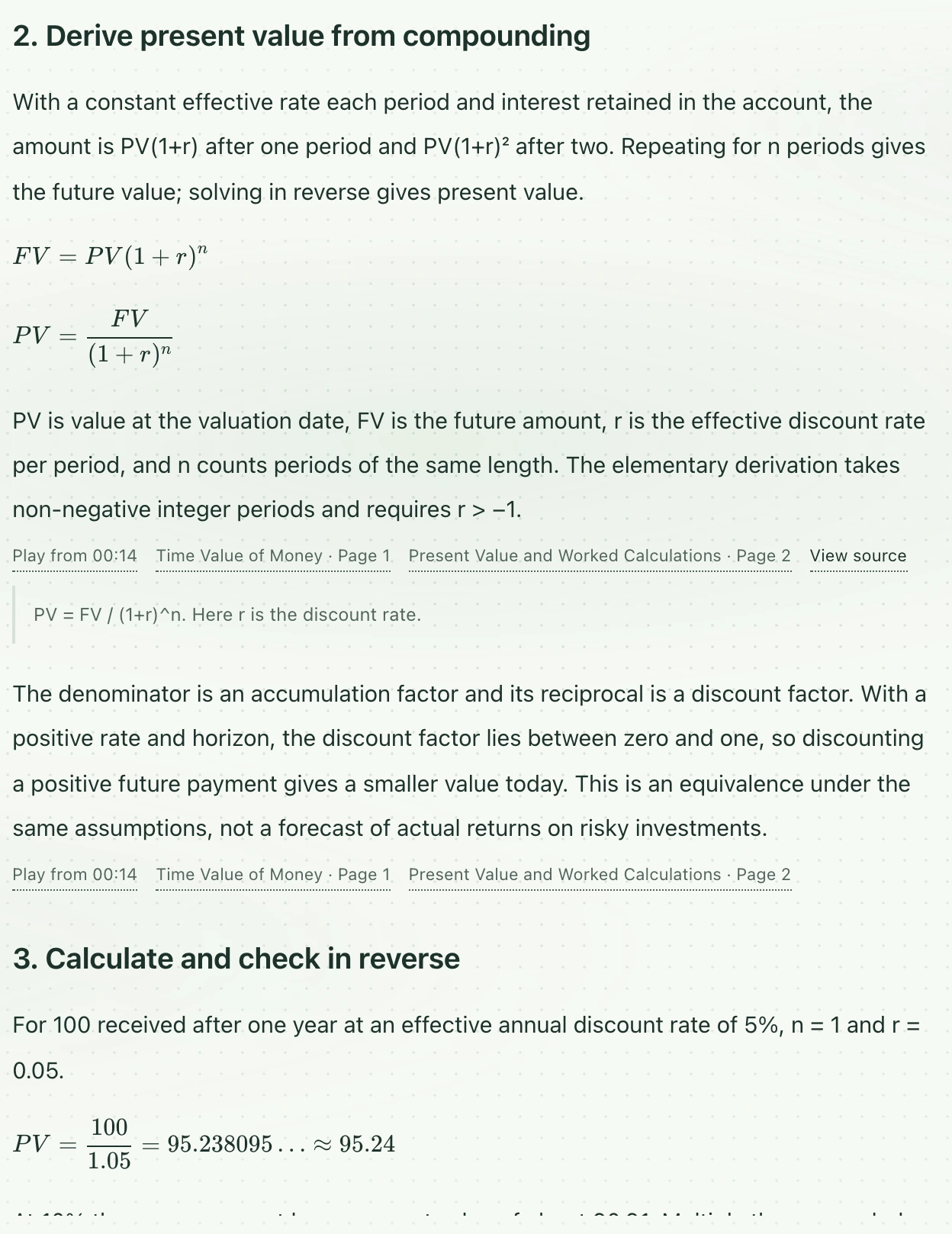
- To check a statement, expand the original generated minutes and sources, then select the relevant timestamp, courseware page, or source entry. Locatable sources return to captions, an audio time, or the corresponding courseware page. A caption source without an audio time can still show its excerpt.
- Edit the upper document directly to add your understanding, then wait for the toolbar to confirm saving. The original generated version and sources stay below, keeping generated content distinguishable from your edits.
Reopening minutes and receiving notifications
Minutes and your edits are saved in this class. Reopen the same class to continue reading the saved version. Completion emails follow your account’s notification settings. Whether an email arrived and whether minutes finished generating are separate things to check. While an update is running, the previous saved content may appear until the new result is ready.
Insufficient content, loading errors, or save conflicts
When there is insufficient usable class content, first check that captions or marked courseware excerpts have saved, then recheck the materials. If the service is temporarily unavailable, existing material remains available; use Retry generation to recover. Reload when status cannot be read. Use Retry save after a failed edit save. For version conflicts, compare versions before choosing the cloud copy or keeping local edits. Sources support the unchanged original generated content; they do not verify text added manually afterward.