The standalone material reader can generate file notes from the current courseware or paper for preparation, chapter organization, and review. It primarily uses verified readable text from that file. It does not automatically combine a whole class recording, spoken additions, and multiple files into one document. Classroom Smart Notes is a separate entry point.
Watch the walkthrough
This video is currently unavailable. Open video in a new window
Before you begin
Open a file directly from the materials list and wait for its content to load. Select Dual view or Triple view at the bottom to show courseware and notes. When notes are empty, a prompt to generate notes for this file and a Generate button appear above them. Check the filename first. Resolve unsaved changes or save conflicts before generating.
Choose how to organize the notes
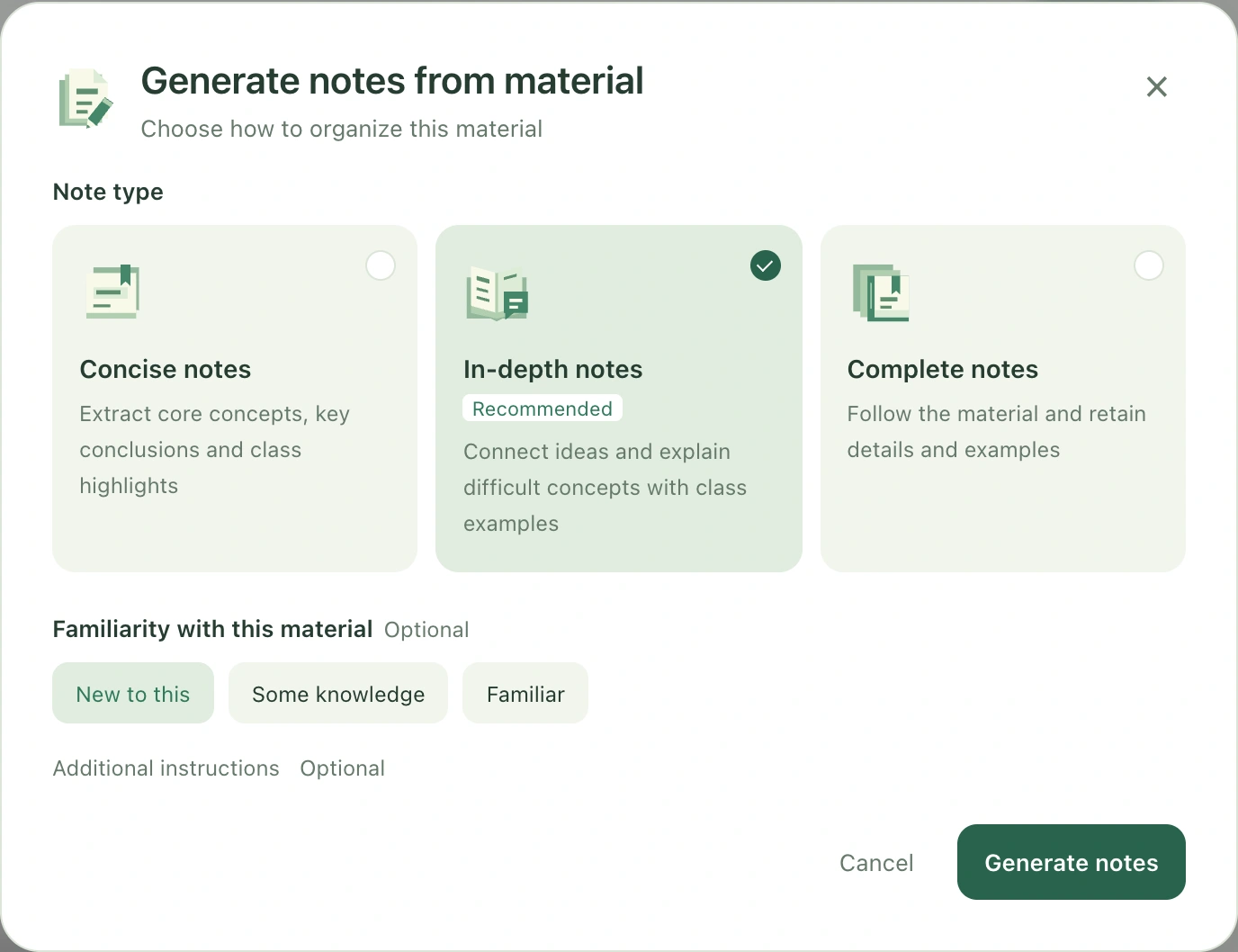
- Select Generate to open the courseware-note settings.
- Choose Concise notes, In-depth notes, or Complete notes. Concise notes emphasize conclusions, in-depth notes explain relationships, and complete notes retain more details and examples in content order.
- Optionally select how familiar you are with the material: new to it, know a little, or familiar. You may leave this unanswered.
- Expand the additional requirements and state preferences, such as “Keep English terminology and explain formula variables and conditions.” Do not ask for experimental results unsupported by the file.
- Select Generate notes. Content appears progressively and is not yet in the normal editable state. Wait for generation to finish before reading and editing it.
Check the result and saving
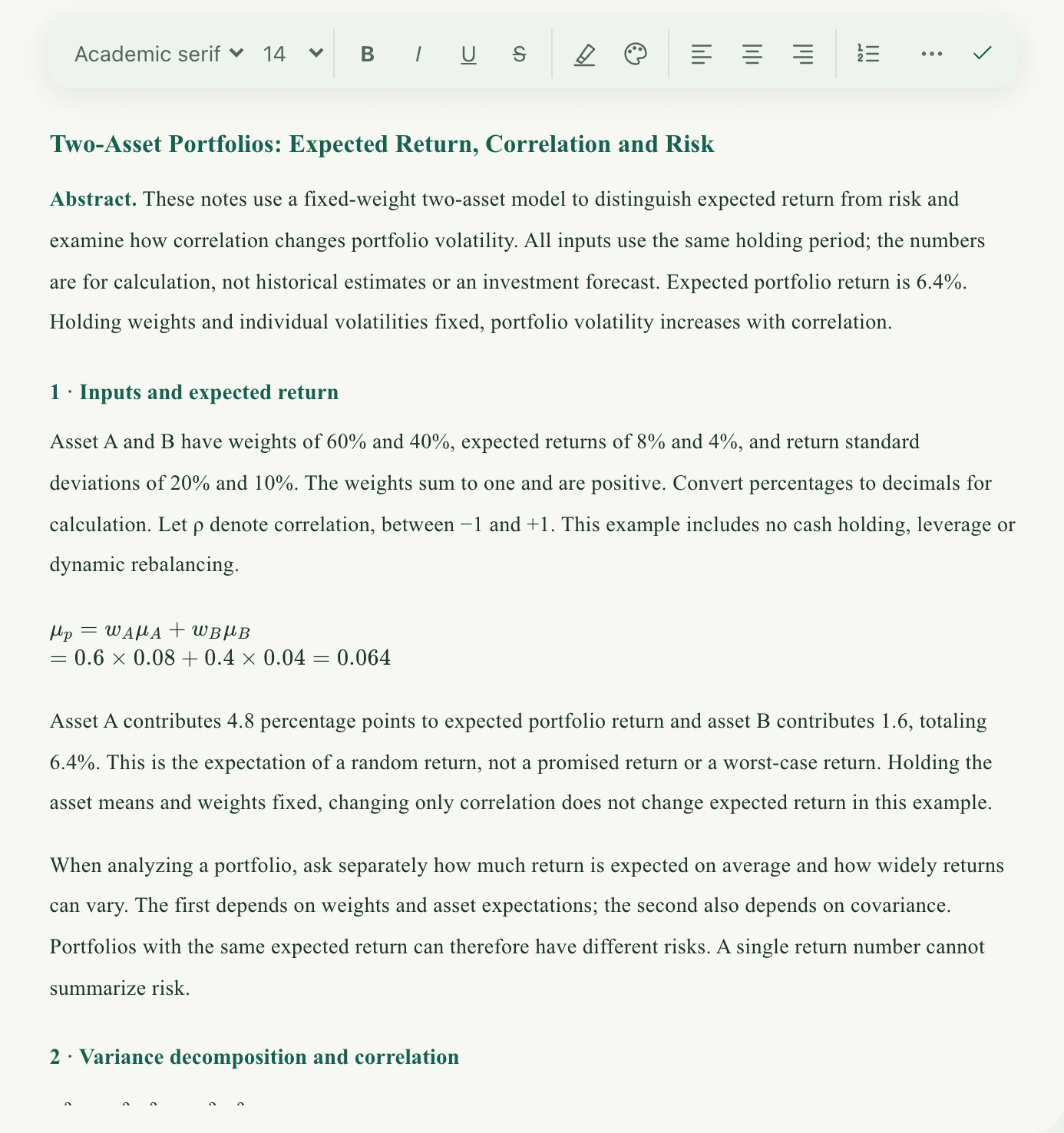
After successful completion, the generated result becomes the current file notes and saving is confirmed. Compare it with the original file, checking numbers, conditions, technical terms, and references. Add your understanding where needed. Later direct edits trigger automatic saving. File notes and handwritten class notes save separately; a file being used in a class does not merge them. Drawing and caption annotations on courseware pages are shared for the same file.
If the button is missing or generation is interrupted
The generation prompt appears only for empty notes. Do not clear existing content merely to find the button. Image-only pages or unreadable text may provide insufficient sources, and long files may contribute only part of their content. Do not assume the result covers the full file. Read the error before retrying generation. An interrupted transfer, a single-run length limit, or uncertain saving does not establish that the visible preview has saved. Keep the page open, inspect the current notes or reopen the material to confirm, then follow the retry instructions.