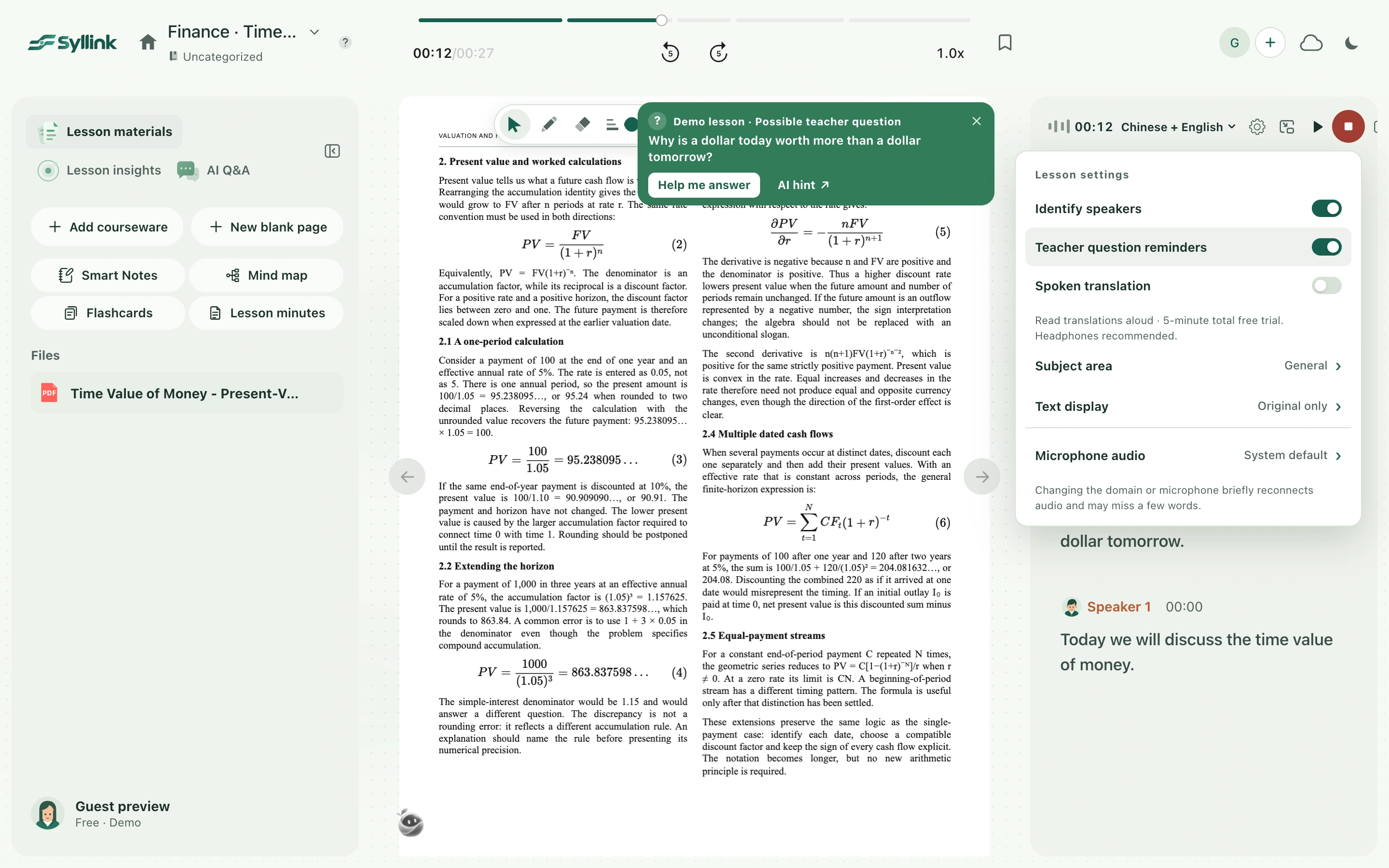
Teacher question reminders keep possible questions from the class captions in a separate record. A reminder first shows the detected original words so you can notice the question promptly; open an AI hint or reference answer only when you need help. Detection depends on captions already received and may be inaccurate. Check the teacher’s question and its conditions before answering.
Watch the walkthrough
This video is currently unavailable. Open video in a new window
Before you begin
Sign in, open your own real class, and start recording. Check that Class captions is updating. Teacher question reminders are off on first use, and this browser remembers the switch setting; check it in settings when you enter a class. Simply opening settings without starting real recording, or leaving recording paused, does not continuously detect new questions.
Enable reminders and work through a question
- Select the Lesson settings icon at the top of Lesson activity. Turn on Teacher question reminders, close the settings panel, and continue listening.
- Watch for a question reminder when the teacher asks a question. Read the original words first. Select the question text in the reminder to expand or collapse it.
- For assistance, select AI hint or Help me answer in the reminder. The corresponding question opens, and answer guidance starts generating if none exists yet. Detecting a question does not turn an AI answer into a conclusion from your teacher.
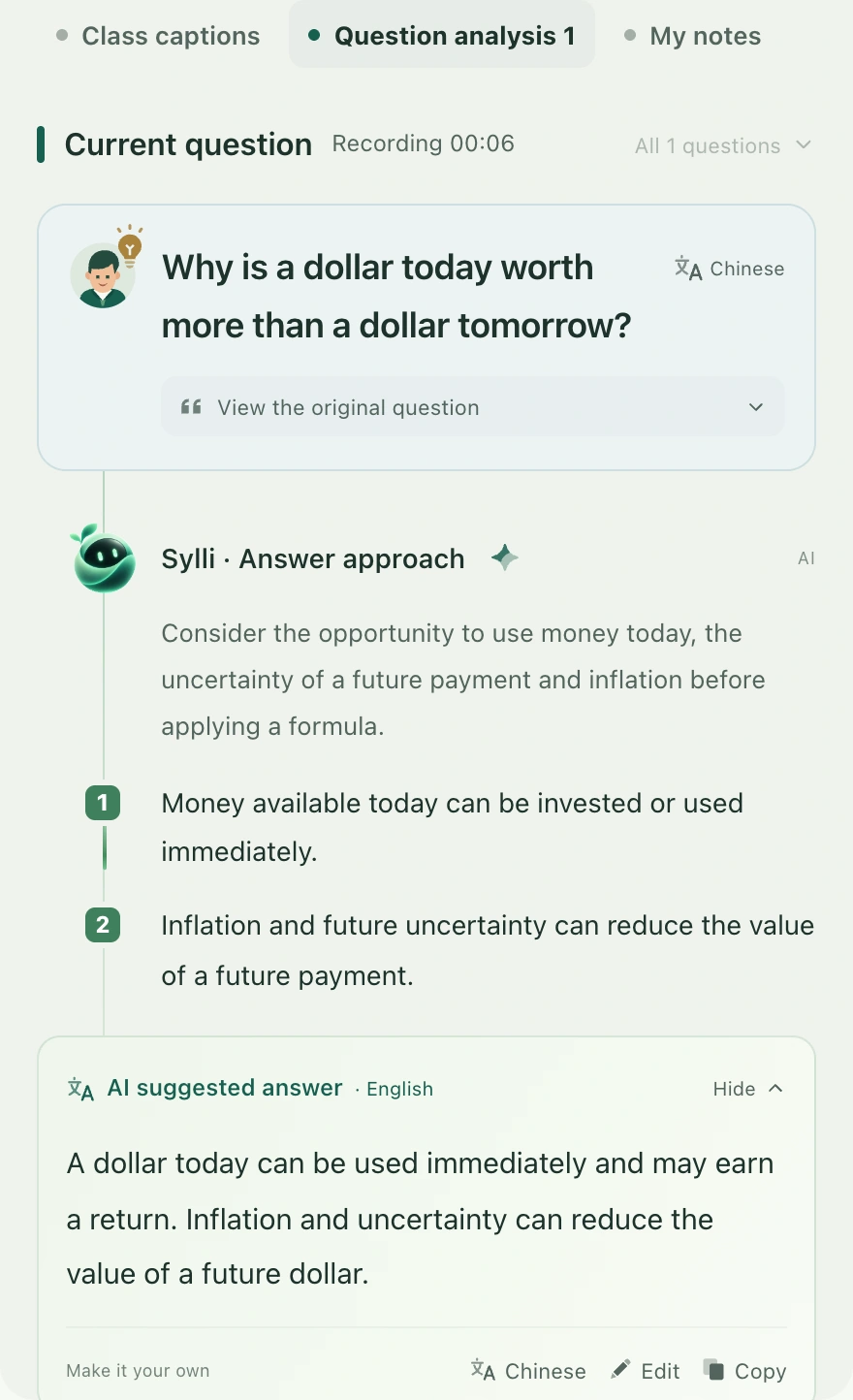
- In the question workspace, read the original question, Sylli’s answer guidance, and the AI reference answer separately. Check formulas, numbers, and task requirements. Wait for the full answer before editing or copying it.
- Use the separate language controls for the question and reference answer when you need another display language. They show existing language versions; if one is unavailable, the interface explains this and keeps the available content.
- To stop new reminders, return to Lesson settings and turn off Teacher question reminders. You can also dismiss an individual reminder while continuing with the rest of the class.
How questions and answers are saved
Questions detected in a real class are linked to that class. Completed answers and your edits to reference answers are recorded through the class saving process. A reminder is only an entry point; dismissing it does not end recording. When editing a reference answer, watch for save failures or version conflicts. If an update conflicts, compare the content before choosing which version to keep.
Missing reminders, incorrect detection, or unfinished answers
If no reminders appear, check the switch, recording status, and whether captions are updating. Not every sentence with a question mark becomes a detected question, and statements may be detected incorrectly. If detection or usage checks fail, the page may turn the switch off and explain why; enable it again after the issue is resolved. If an AI answer is interrupted or marked incomplete, use the question workspace’s regenerate action. Treat a partial answer as unfinished. Add missing conditions from the materials, or ask your teacher directly when the context is insufficient.