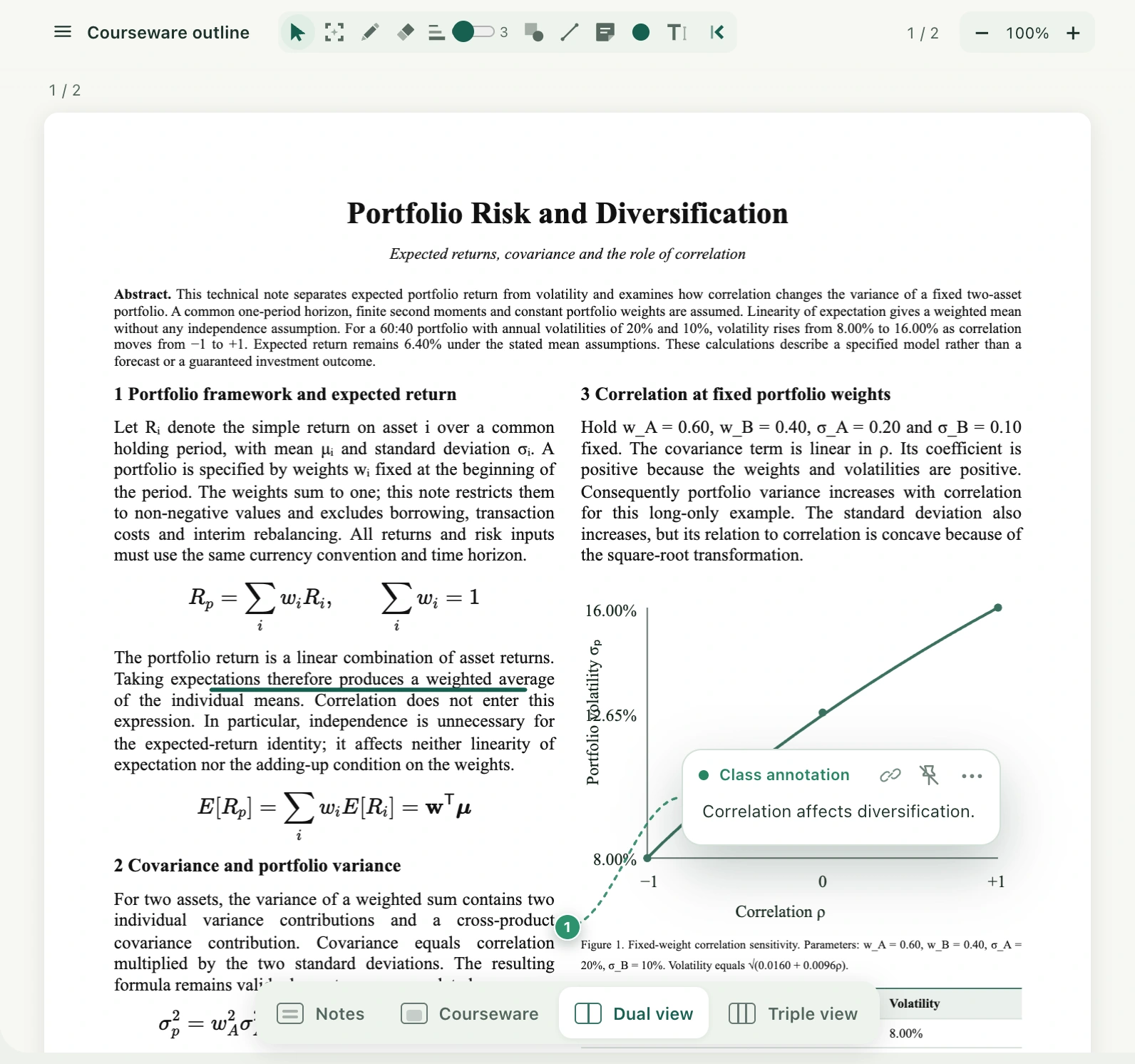
Courseware drawing marks a file’s pages directly. Margin annotations place class captions on a chosen page with editable content and source information. Both are courseware annotations, separate from file notes or the classroom’s My notes body. For the same file, these annotations can synchronize between a class and the standalone reader.
Watch the walkthrough
This video is currently unavailable. Open video in a new window
Write and draw on a courseware page
- Open fully loaded courseware and select the pen in the top toolbar. For highlighting original text, open the pen menu and choose the highlighter.
- Adjust line width, drawing color, or opacity, then hold and drag to draw on the page. Use the eraser when needed.
- Use rectangle, circle, line, sticky-note, or text tools as appropriate. Switch back to the pointer afterward to turn pages and read, avoiding unintended drawing from ordinary clicks.
Turn class captions into margin annotations
- Select a caption in class and use its drag action to annotate the current courseware page. Drop it onto the intended page. Check the selected courseware and page first.
- The new card starts with the class-annotation title. Its number marker and main card move separately: dragging the number does not move the full card. Drag the title area to reposition the card while keeping the connecting line.
- Hover over the card to expand longer content. Select the body to edit, or double-click the title to change it. Pin it open to keep it expanded, and use the right edge to change its width.
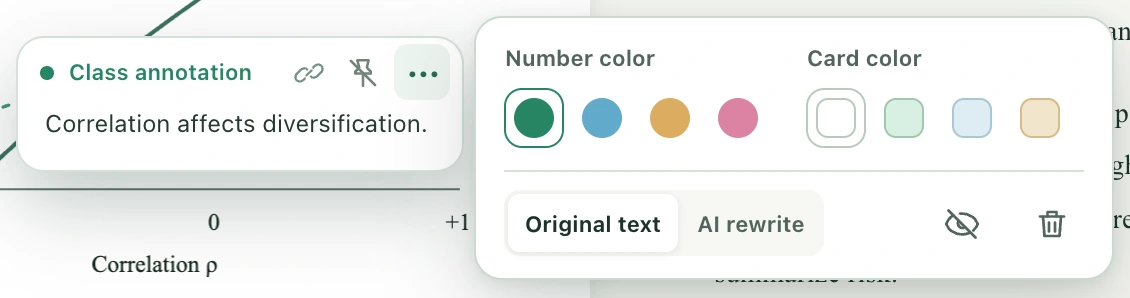
- Open the three-dot annotation settings. Hover over the source symbol when source information exists. Use the source card’s original-class action to return to that class.
Check synchronization
Drawing and caption margin annotations share records for the same account and source file. After changes in the standalone reader, reopening that courseware in class loads the same content. File notes and handwritten class notes still save separately and are not merged with these annotations. Watch the cloud icon at the top while saving. Select it and follow the retry instructions after a failure, and compare content first if there is a conflict.
If drawing is unavailable or positions are wrong
Tools may be temporarily unavailable while the page loads, the account is unconfirmed, or annotations have not loaded. Word pagination needs confirmation first, and layout changes can affect annotation positions. Follow the reading-recovery instructions before editing. Do not apply old coordinates to a replaced source file. Keep the page open after a sync failure and avoid simultaneous edits in another window. Showing and editing caption cards does not alter the original recording or file body. Confirm saving before leaving important annotations.