
A smart courseware outline provides section links for an uploaded file. Expand its outline in Lesson materials, then select a section to jump to its source page instead of searching manually. Each outline covers that file alone. It is a navigation aid and does not establish which pages your teacher has covered.
Watch the walkthrough
This video is currently unavailable. Open video in a new window
Before you begin
Sign in and open your own real class. Select Add courseware under Lesson materials, upload a PDF, PPTX, or Word file, and wait for saving to finish. A PDF with valid bookmarks can use its existing sections. Otherwise, Syllink attempts to organize sections from readable text. Image-only scans or files without readable text may not produce an outline. A newly created blank page has no courseware outline control.
Expand and use the sections
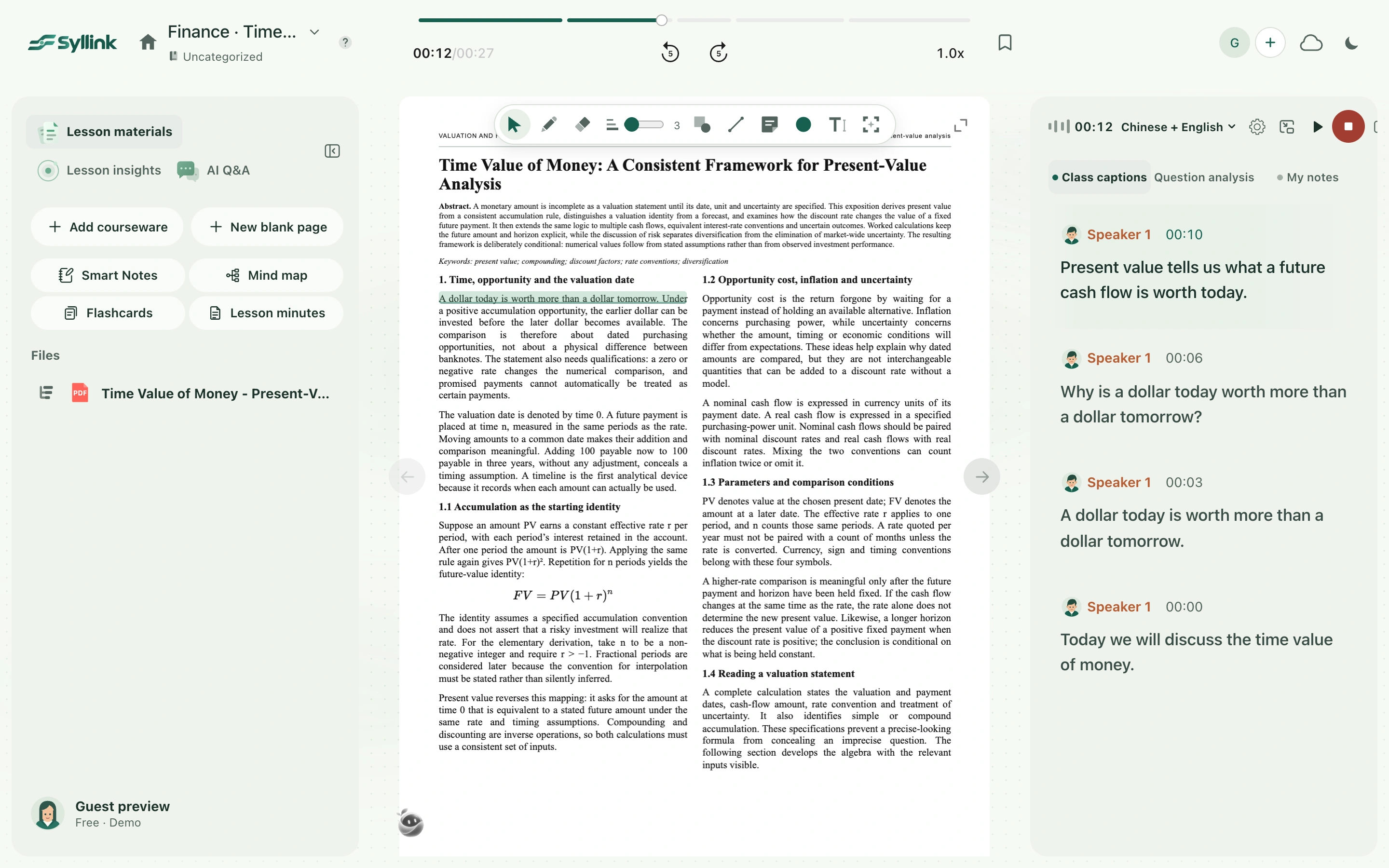
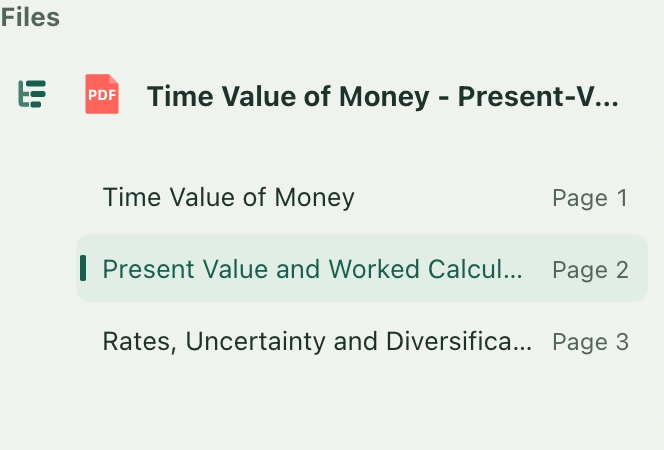
- Find the courseware in the Lesson materials file list. A separate outline icon appears before the file-format icon. Hover over it to see the expand-outline action or its current status.
- Select the outline icon to expand the section list. Expanding it alone does not change the file you are reading. Select the file title to open the file as usual.
- If the outline is still being prepared, continue reading other content. Files are prepared in sequence after saving. Repeatedly expanding, collapsing, or uploading them again does not speed this up.
- When sections appear, check their titles and page numbers. Select a section to open the corresponding file at its source page.
- Use the outline again whenever you want another section. Select the same icon to collapse it. Collapsing the outline or opening another file does not cancel preparation already underway.
How the outline is retained
A prepared outline is linked to its saved file. Reopening the file, collapsing and expanding its sections, or refreshing the class reads the existing result instead of generating it each time. Use the new file’s content when you replace a file or delete the old one. Sections from an old file cannot navigate a new one.
Missing sections, failed navigation, or a retry icon
If the outline is not ready, read the specific reason shown below, then select the retry-outline icon beside the title. The courseware itself remains readable. For files without readable text, use a version with selectable text. If Word reading or pagination is not ready, reopen the file or use a PDF when necessary. If Word pagination has changed, the current outline cannot locate sections reliably; use the file’s actual pages. Section titles help navigation; check learning conclusions on the source page.