For a formula that is hard to type, a complex chart, or a technical passage, select an area of the courseware and let Sylli explain the image. Include the question, necessary symbols, and axis labels together. A single letter or a number without units is often insufficient. Selecting an area supplies an image for your question; it does not change the original file.
Watch the walkthrough
This video is currently unavailable. Open video in a new window
Before you begin
Sign in and open your own class or saved material. Wait for the target page to display fully. The classroom toolbar uses AI selection, while the standalone material reader uses its screenshot selection tool. Their next actions differ, so follow the instructions for the page you are on. If the control is unavailable or the page is still loading, wait until it is ready.
Select an area and send it from a class
- Open the courseware at the target page. Select AI selection in the toolbar, then drag a rectangle over the content you want explained and release.
- Check the pending screenshot in the AI Q&A composer. Make sure text and charts are not cut off. Classroom selection adds a screenshot first; releasing the mouse does not immediately request an explanation.
- Enter a specific question, such as “Explain each symbol in this formula, then calculate it using the numbers shown.” Select the send arrow, or press Enter to send and ShiftEnter for a new line.
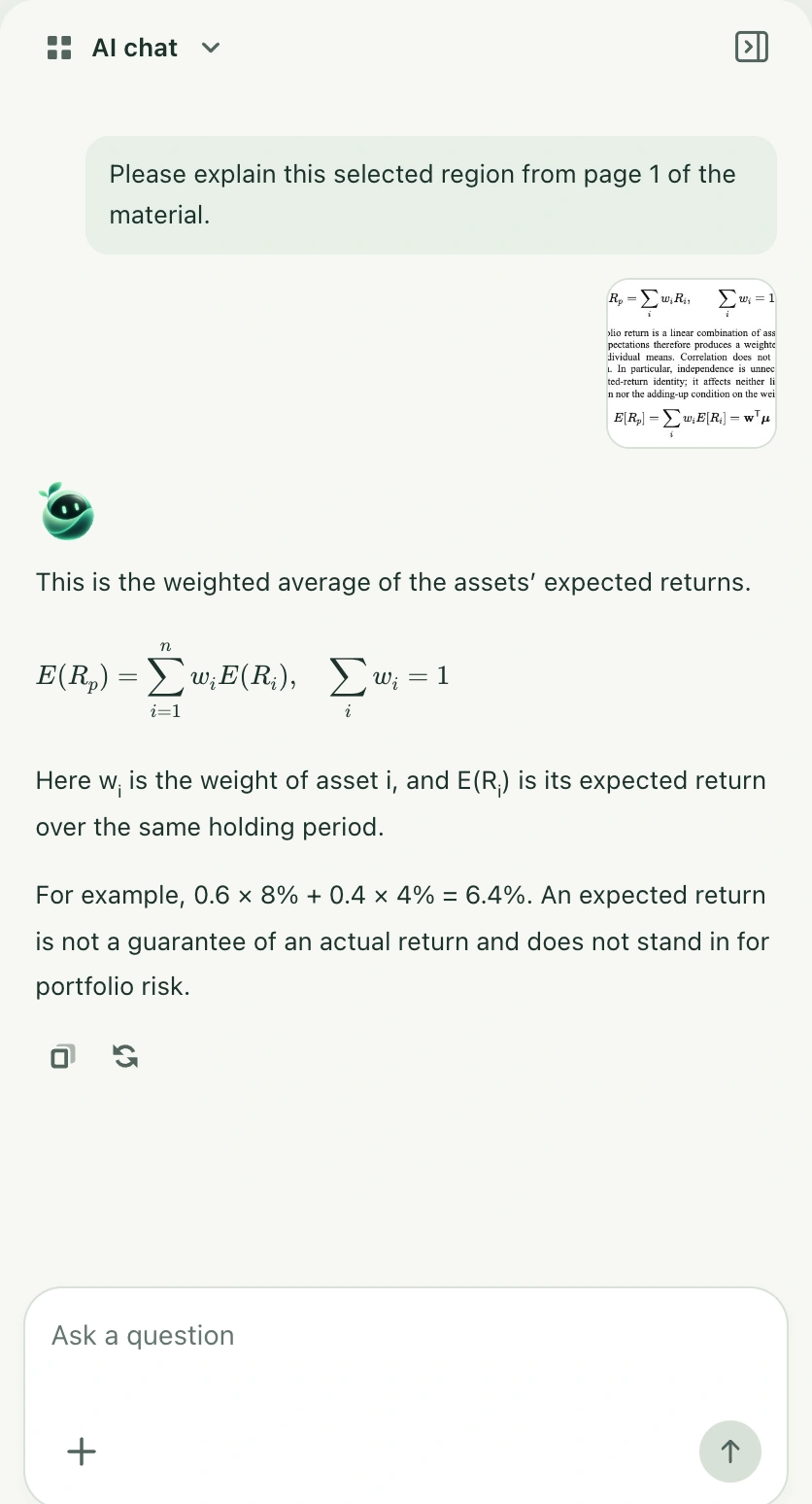
- Wait for the reply in AI Q&A and check that it addresses the screenshot. Ask about a particular step in the same composer if you need more explanation.
Use the standalone material reader
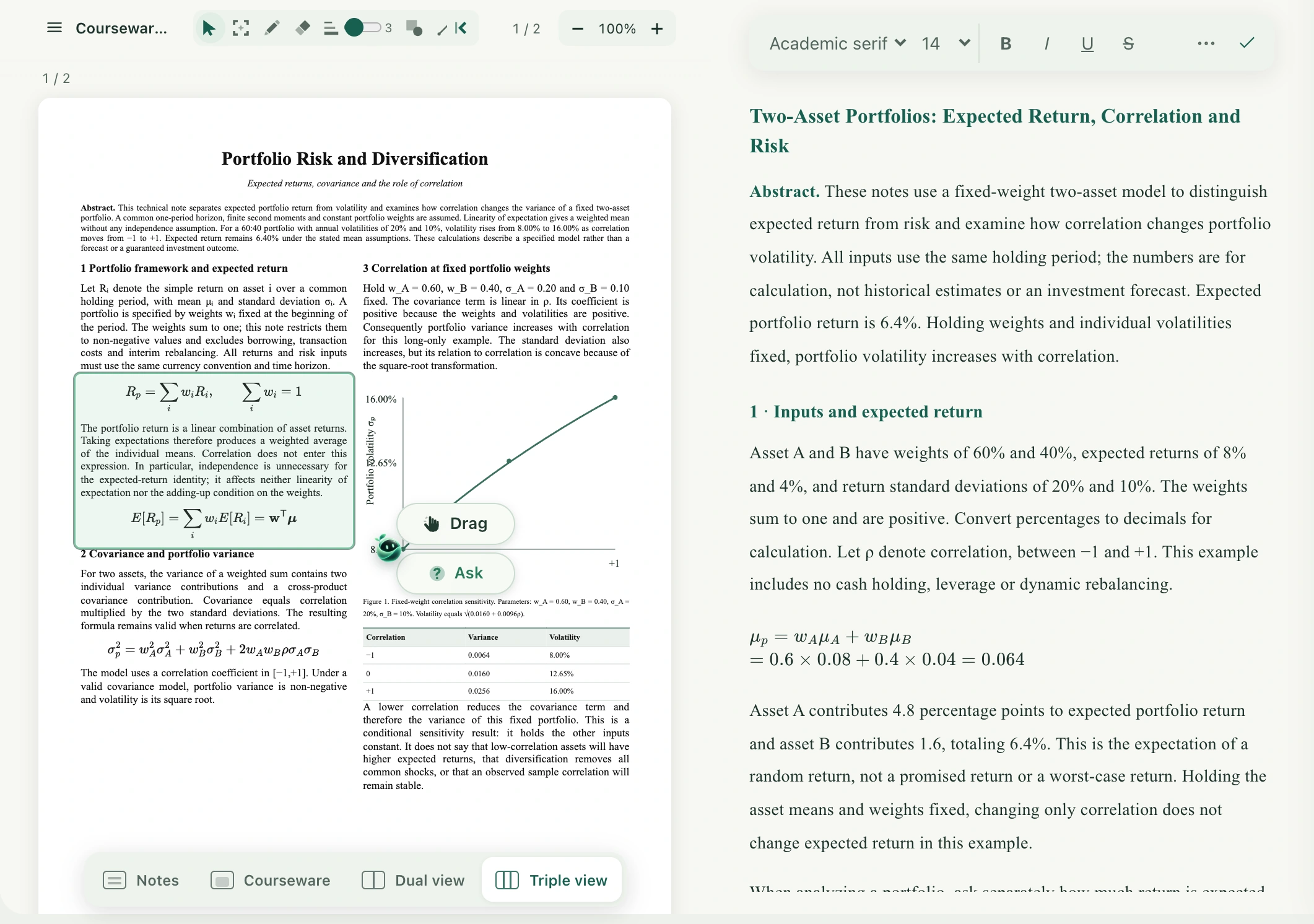
After selecting an area with the reader’s screenshot tool, Drag and Ask appear beside it. Ask sends that screenshot directly with a default explanation request. To write your own question first, hold Drag and drop the screenshot into the AI chat composer in Triple view, then add your question and send. These two actions send at different times.
Where answers appear and how to keep them
Answers appear in the current AI conversation and are not automatically added to courseware or notes. Copy explanations you want to keep into your notes and check the note’s save status. The material reader’s AI conversation is not automatically saved to your account. Keep classroom text exchanges you need before leaving, too. Classroom screenshot answers may remain in the current browser, but should not be treated as notes available across devices.