Flashcards split a point of knowledge into a question and an answer so you can recall it before checking. In Standard mode, flip each card and explicitly record your judgment with Not yet or Got it. Reading a card alone does not establish mastery. After seeing the answer, choose the option that reflects your understanding to keep a useful review record.
Watch the walkthrough
This video is currently unavailable. Open video in a new window
Prepare a deck
Sign in and open a real class. Save courseware, captions, or notes that contain learning content first. Select Flashcards in the study tools under Lesson materials to generate a deck from available sources. Open an existing deck from the class file list. A waiting animation appears during generation; wait for completion and saving before reviewing. You can generate preset demo flashcards in the demo class to learn the controls.
Complete a review in Standard mode
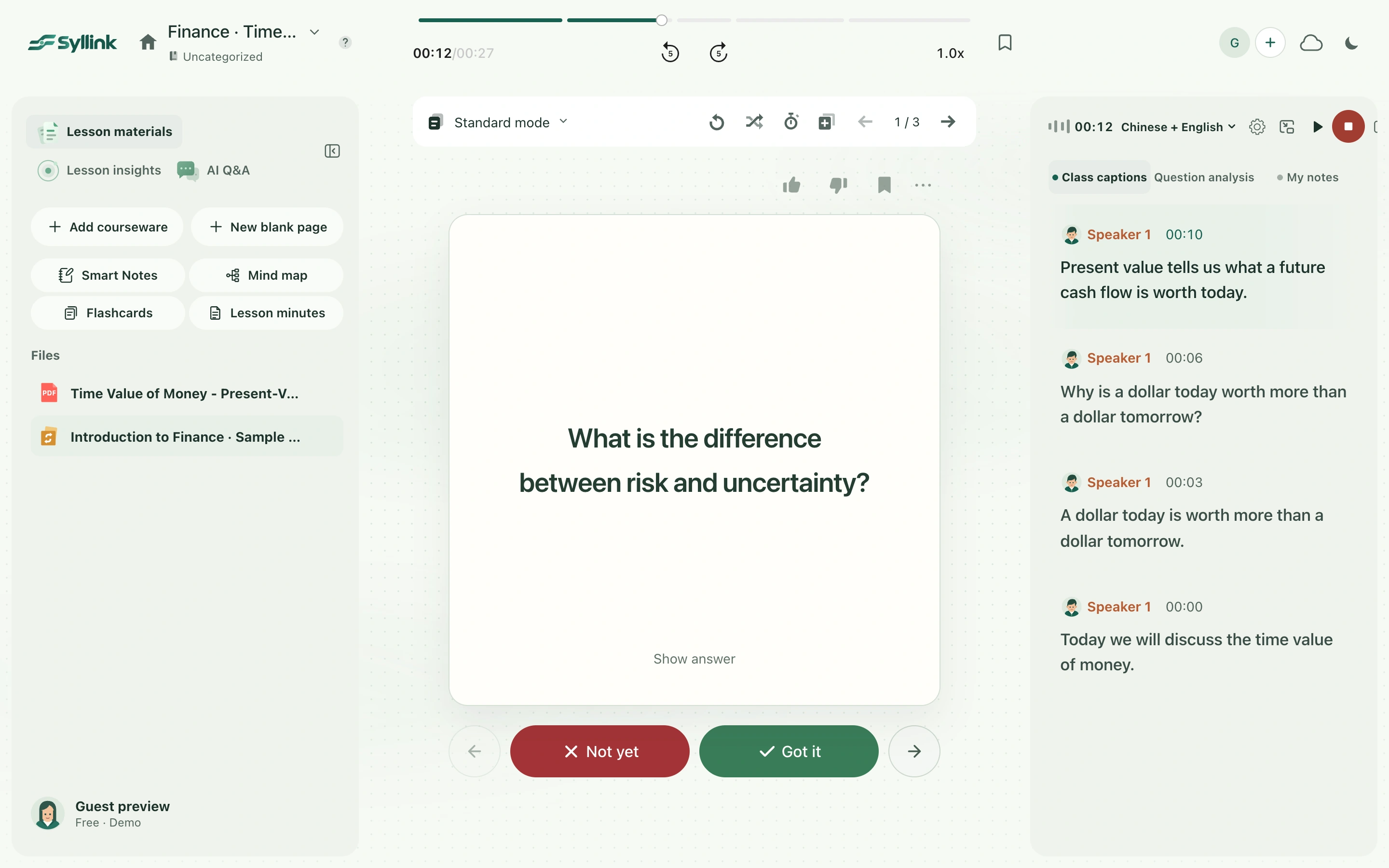
- Open a deck and confirm Standard mode in the top mode control. Read the question on the front and try to answer it mentally before flipping.
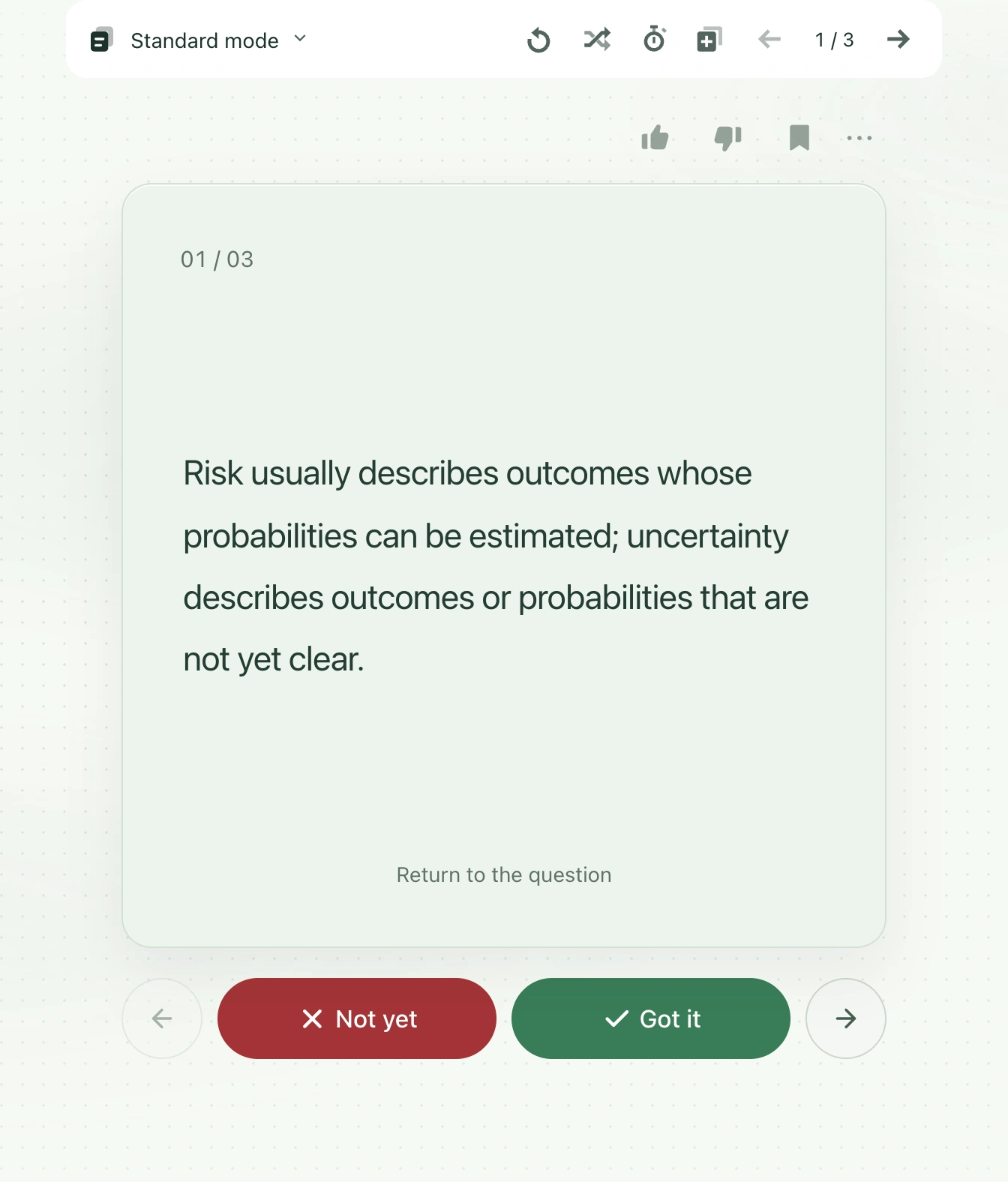
- Select the card, or focus it and press Enter or Space, to see the back. The answer side shows the card’s position in the deck at the upper left. Select it again to return to the question.
- If you did not understand or could not answer, select the red Not yet button to mark it for review. Select the green Got it button when you understand it; this records mastery and clears its Not yet mark.
- Wait for Added to review or Mastery recorded. The next card appears after a short pause, so avoid repeated clicks during this feedback. The last card keeps the recording feedback rather than automatically looping to the start.
- Use the round previous and next arrows to browse neighboring cards. Browsing does not record your understanding. Return to a card and choose again if you want to change your judgment.
Bookmarks, feedback, and progress
The like, dislike, and bookmark controls above the card record content feedback and bookmark preferences separately from Not yet and Got it. These controls do not flip the card or advance it. Review progress saves automatically to this deck in the current account; successful saving needs no extra confirmation. Reopen the same saved deck to continue reviewing.
If generation fails or progress is not saved
If there is not enough usable text, check that you can select text in the courseware or add captions and notes. After a connection interruption or timeout, restore the network and reopen the deck to check its generation status before retrying, avoiding duplicate generation. Follow any explanation about unavailable generation allowance; existing decks remain available for review. Use Retry save if progress is not saved. For version conflicts, keep a backup and load the latest progress, then compare before continuing.