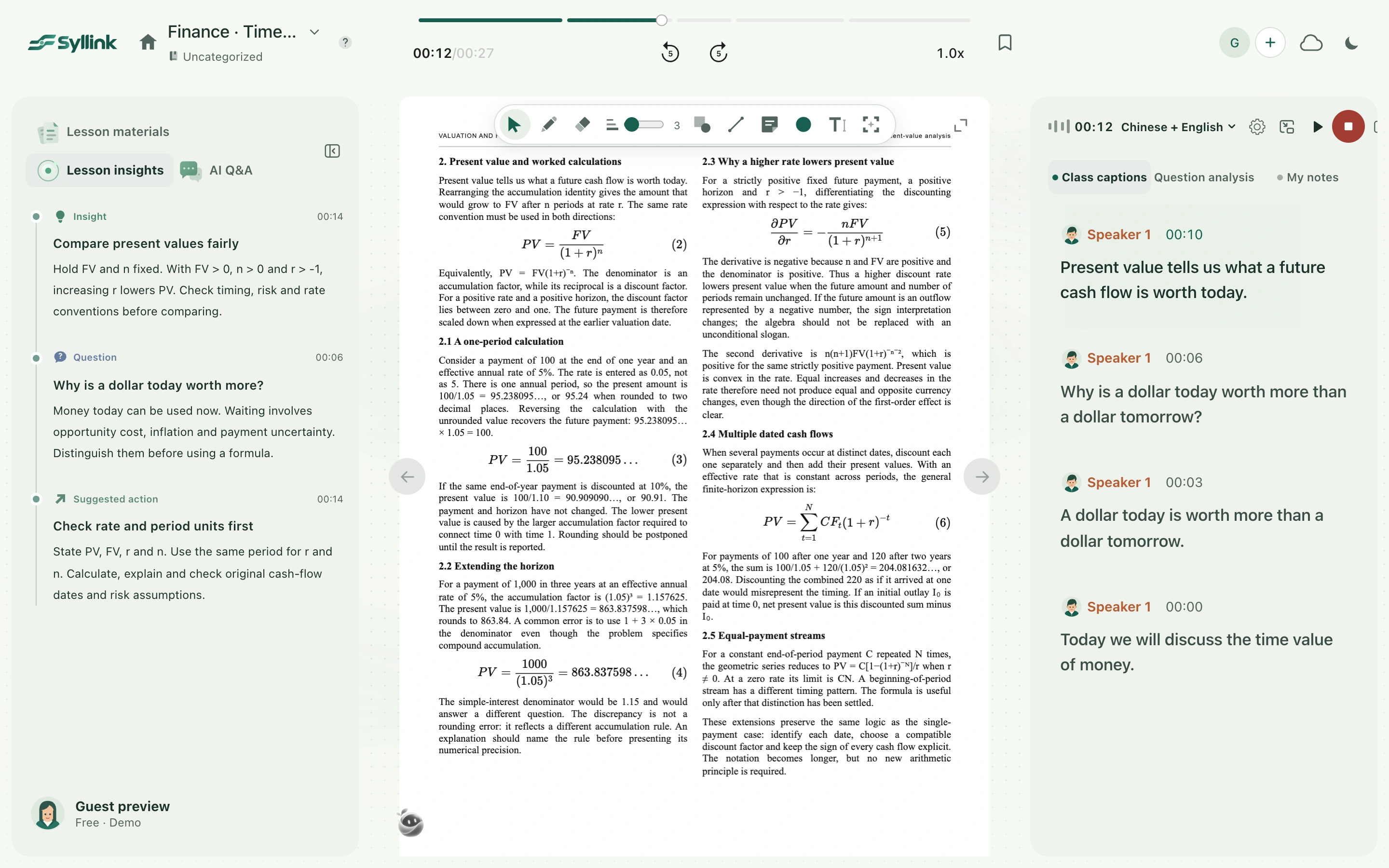
Class insights organizes noteworthy classroom content into short entries covering concepts, questions, course tasks, and suggested actions. It updates with the class, so you can read along or review the timeline afterward. Each insight is an aid to understanding its sources. Check assignment requirements, numbers, and conclusions against the teacher’s original words.
Watch the walkthrough
This video is currently unavailable. Open video in a new window
Before you begin
Sign in, open a real class, and start recording. Check that captions are being produced and saved. Class insights needs usable class records; an empty state is normal when you have just entered an empty class. The demo interface helps you find the controls, but preset demonstrations do not automatically generate real class insights.
Read entries, expand them, and check the source
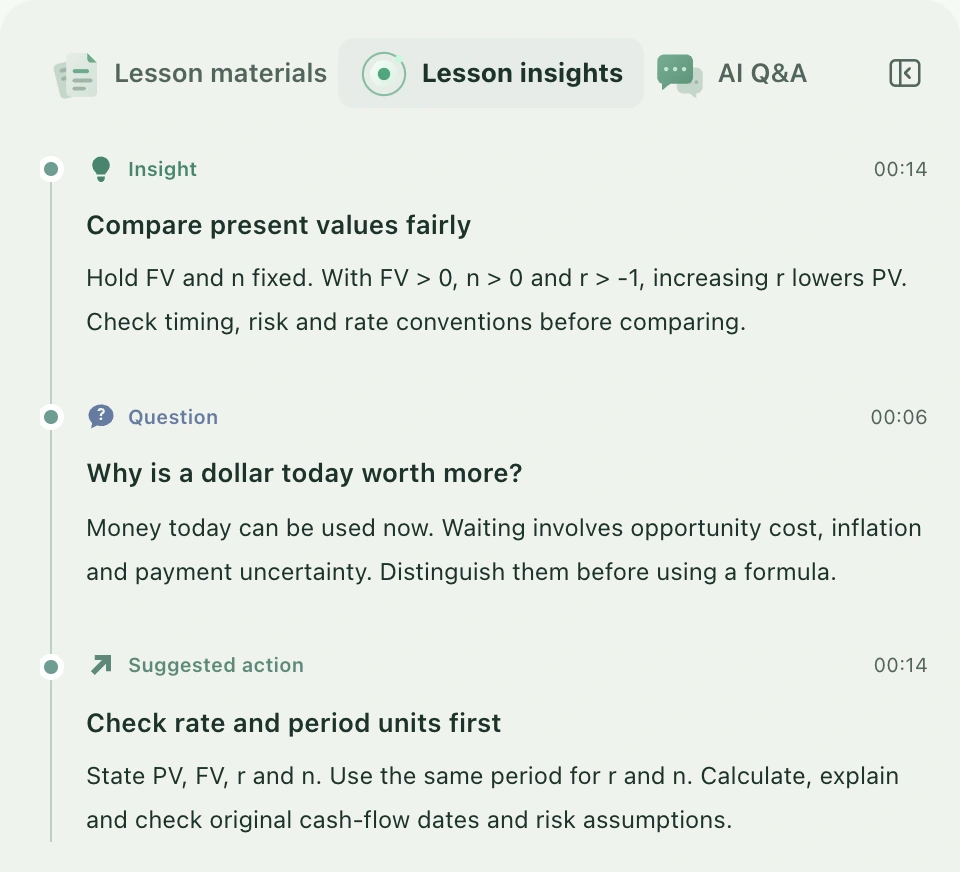
- Select Lesson insights at the top of the left-hand materials panel. If the sidebar is collapsed, expand the class materials area before choosing this tab.
- Keep listening as usual. Available content is added to the timeline as the class progresses. During the first analysis, the panel may show that it is analyzing or organizing class content. You do not need to keep requesting generation.
- Read each entry’s type, title, and explanation. Distinguish insights, questions, course tasks, and suggested actions. Select Expand when a longer explanation is shortened, then Collapse when you have finished reading.
- To verify a point, select the time or original-text entry beside it. This returns to the relevant captions. During review of a class with a recording, it also attempts to locate the corresponding audio time.
- After scrolling up through older entries, select the new-insights prompt at the bottom to return to the latest content. You can also finish reading your current entry before catching up.
What happens after class
Prepared insights are saved with this class. After you end recording, the last saved captions may still be processed. If a finishing-up message appears, wait for that processing to finish. Reopen the same class later to read its existing insights. Ending recording does not mean every insight has finished, or that every explanation will become an entry.
Empty states, waiting, and errors
A class that has just begun, has little usable text, or contains no recent material suitable for an insight may show no new entries. That does not mean recording has failed. Check captions and save status, then keep listening. During a temporary network or service interruption, the panel attempts to recover while retaining existing entries. Use Retry when a specific error and retry button appear. If sources remain unavailable, resolve the caption or sign-in issue first. Distinguish tasks explicitly assigned in class from study suggestions supplied by AI.