Select a chart in the material reader, drag it into the note body, add your explanation, and check saving.
Demonstration materials; AI results are illustrative teaching examples
While reading a paper or courseware, capture a chart, formula, or passage from the current page and place it in that file’s notes. You can keep the original image alongside your own explanation. This tutorial uses selection and dragging in the standalone material reader. The classroom’s AI selection tool mainly prepares questions; the two pages have different workflows.
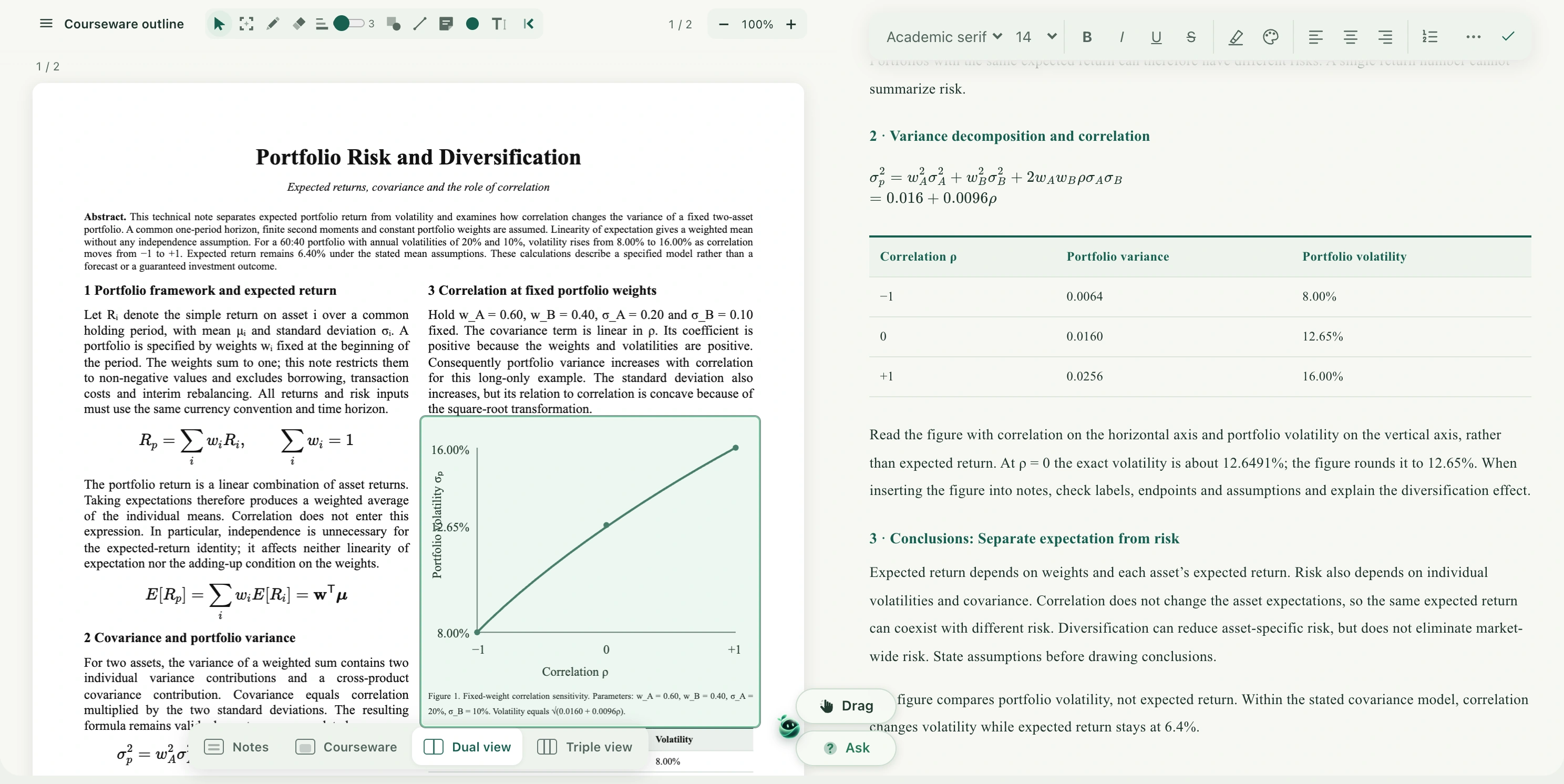
Capture a complete chart in the continuous reader, drag it into existing notes, and add its conditions and explanation. The material is synthetic; this film does not demonstrate cloud saving.
Before you begin
Sign in and open a saved material from your learning space. Use Dual view or Triple view under the bottom reading-layout controls so the target page and this material’s notes are both visible. Wait for the file and notes to load. If notes are generating, read-only, or have a save conflict, finish the current operation or resolve the notice first.
Drag a selection into the note body
Go to the chart’s page and adjust zoom so its title, legend, axes, and key numbers are clear. Select the screenshot selection tool in the drawing toolbar.
Drag a rectangle over the chart and its necessary explanation, then release. Wait for the screenshot and the Drag and Ask controls to appear.
Hold Drag and move to the intended insertion point in the note body. Watch for its drop indicator before releasing. Avoid the note title, toolbar, and other panels.
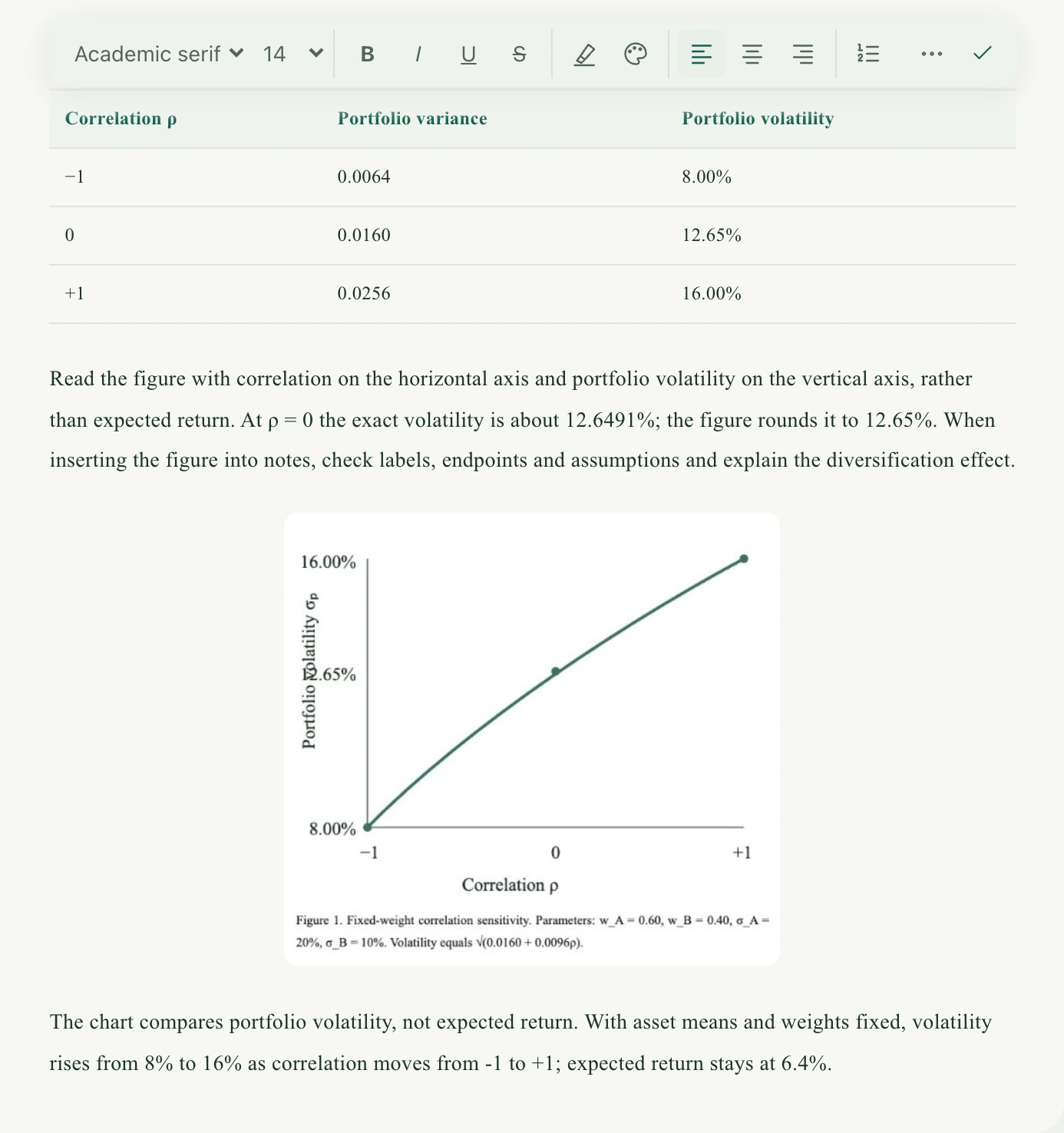
After insertion, the cursor moves to an empty paragraph after the image. Add a sentence or two in your own words, such as “This chart compares portfolio volatility at different correlations”, and specify the relevant axes and conditions.
Check that the image is complete and legible. For dense content, capture a smaller but complete area. Turning pages or updating the original file does not replace the inserted static screenshot.
Capture the complete chart and necessary parameter descriptions.Drop into the editable note body, then add your explanation after the screenshot.
Why was no image inserted when I released the mouse?
Check that you dropped inside the editable note body and that the notes are not loading, generating, or resolving a conflict.
What if the selection disappears during dragging?
Scrolling, zooming, changing files, or resizing a window may invalidate the screenshot. Return to the target page and select it again.
What if the image is too detailed or the note is too large?
Capture only the necessary chart and explanation at a time. Avoid repeatedly adding dense full-page screenshots.
What if I accidentally drop the screenshot into AI chat?
That adds a pending image for a question, rather than inserting it into notes. Return to the courseware, select again, and drop into the note body.
Will inserting a chart automatically add an explanation?
No explanation is generated by inserting the image. Write underneath it, or ask AI separately and organize the checked conclusion in your notes.
Syllink · Your AI classroom companion
More than a lecture. A lesson you keep.
Follow the ideas in class and keep learning afterwards. Keep explanations, materials, notes and key points together as a starting point for your next review.