
File notes can combine explanations, formulas, and selected screenshots in one body. Good technical formatting makes concepts, conditions, and calculations distinguishable, rather than enlarging every line or decorating every sentence. These steps apply to the standalone material reader’s file-note editor. Handwritten class notes are a separate document saved to a class.
Watch the walkthrough
This video is currently unavailable. Open video in a new window
Before you begin
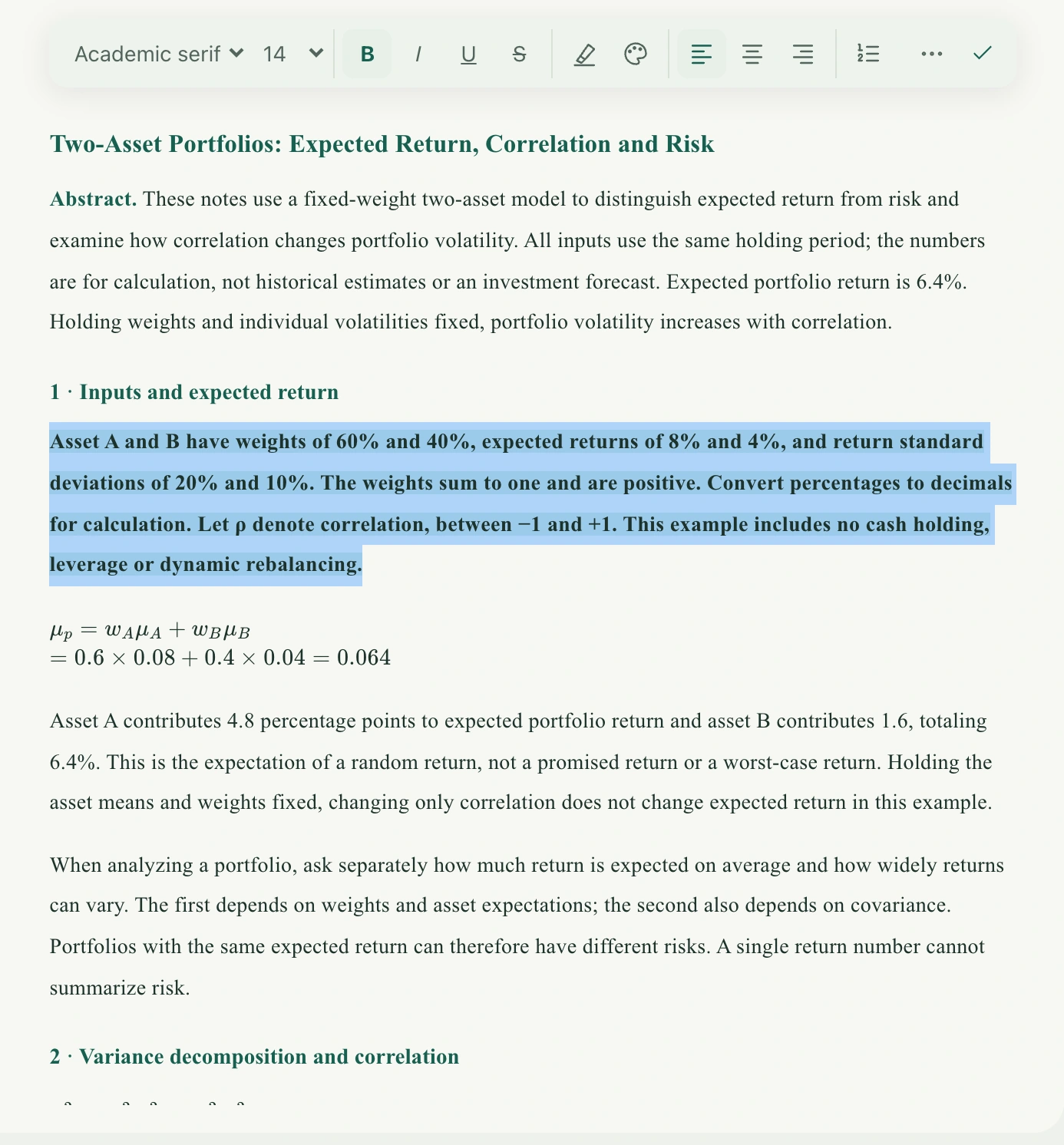
Open the file in Dual view or Triple view, wait for notes to load, then select the body to edit. Standalone file notes default to a literature-style font at size 14; adjust it for your reading needs. Wait for generation or resolve save conflicts first. A generation preview is not a saved, editable final document.
Adjust structure, then detail
- Select text and choose a suitable font and size in the toolbar. Keep body styles consistent, with headings or key conclusions providing hierarchy.
- Use Bold, Italic, and Underline for key content. Add text highlighting or color for terms and conditions when needed. Avoid relying on color alone to express a distinction.
- Use numbered lists for derivation steps and bullet lists for parallel concepts. Choose left, center, or right alignment to suit the paragraph.
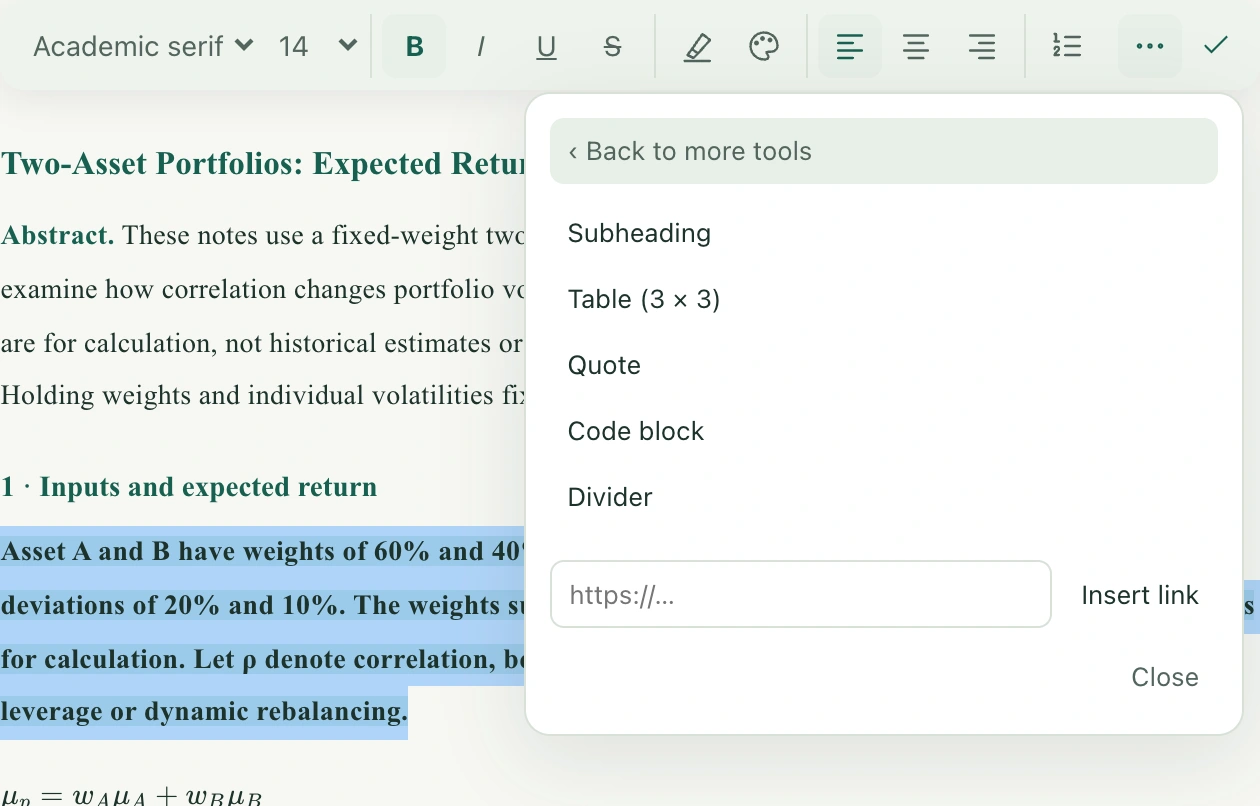
- Open the insert-content menu for a heading, 3 × 3 table, quote, code block, or divider. You can also enter a valid link and insert it. Tables are useful for comparing variables, units, and conditions.
- To preserve a chart’s original appearance, select it in the courseware and hold Drag to drop it into the note body. The screenshot is inserted as an image, not an editable data table.
Formulas and saving
If tools are missing or the content is complex
Narrow areas move some buttons into More tools. Open that menu before switching files back and forth. Use Undo for a mistaken edit and Redo to restore the operation. Each note has a capacity limit, and a complex screenshot may require a smaller area. Follow the instructions to reduce screenshot detail instead of repeatedly inserting large full-page images. Directly dropping external content into the body may be blocked; use the built-in courseware selection-and-drag action for screenshots. File notes do not automatically become handwritten class notes. Record the teacher’s spoken additions in the corresponding class’s notes.