Use Sylli Rewrite to clarify informal wording or make an explanation more concise in file notes. It suggests changes to selected text and keeps the original until you confirm replacement. The action is in the standalone material reader’s note body, rather than in a courseware image or the caption editor.
Watch the walkthrough
This video is currently unavailable. Open video in a new window
Before you begin
Open the file in Dual view or Triple view and wait for notes to load and save. Resolve any generation, save conflict, or read-only state first. Select a short passage of plain text within one paragraph. Preserve terms and original wording you need to verify; avoid including images, formula objects, or an existing rewrite attribution.
Review the suggestion before replacing
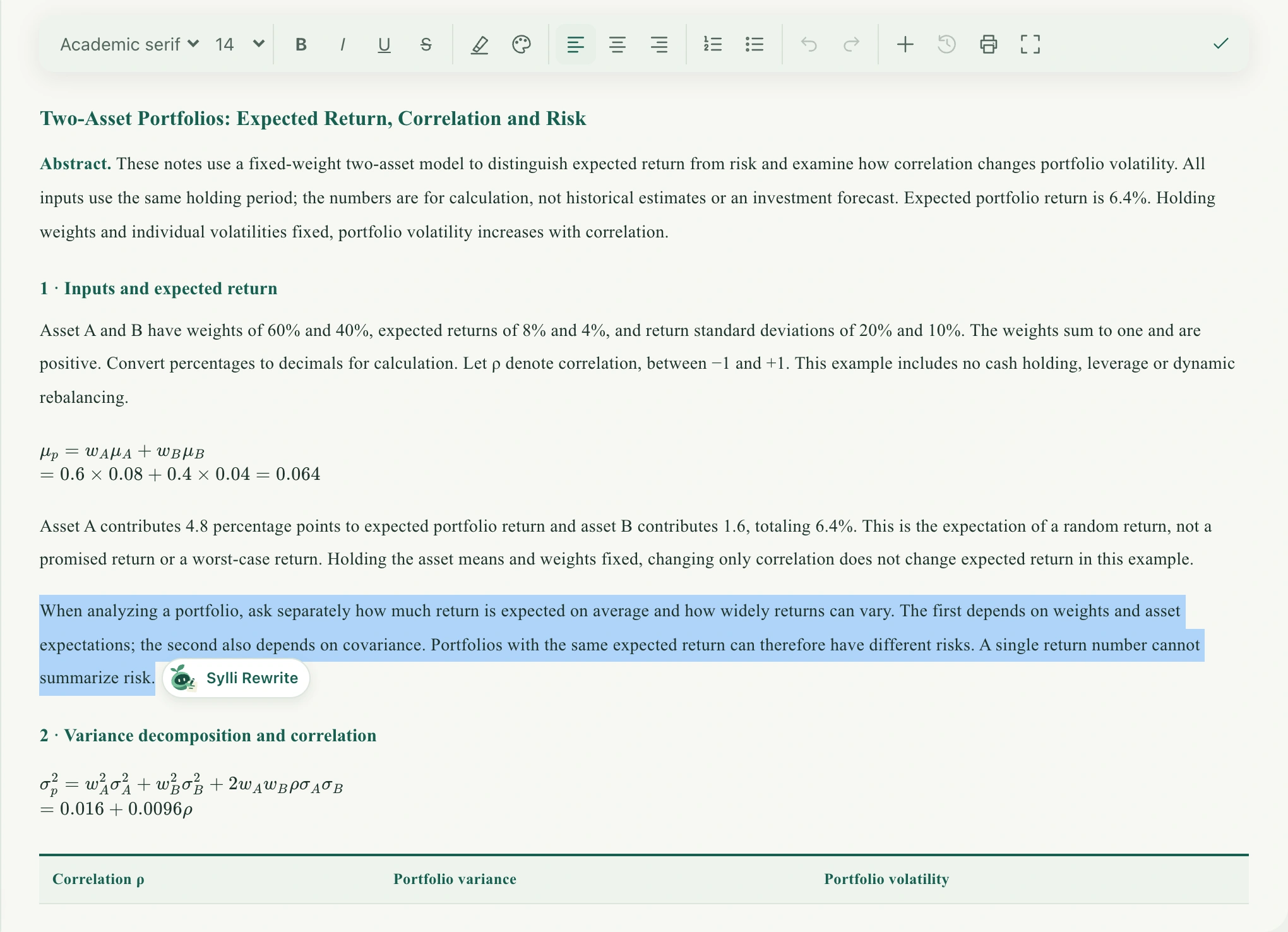
- Drag to select text in the file’s note body and release. If the selection is eligible, Sylli Rewrite appears nearby.
- Select Sylli Rewrite. The current note is checked and saved first, then AI chat opens with the selected text shown in the composer.
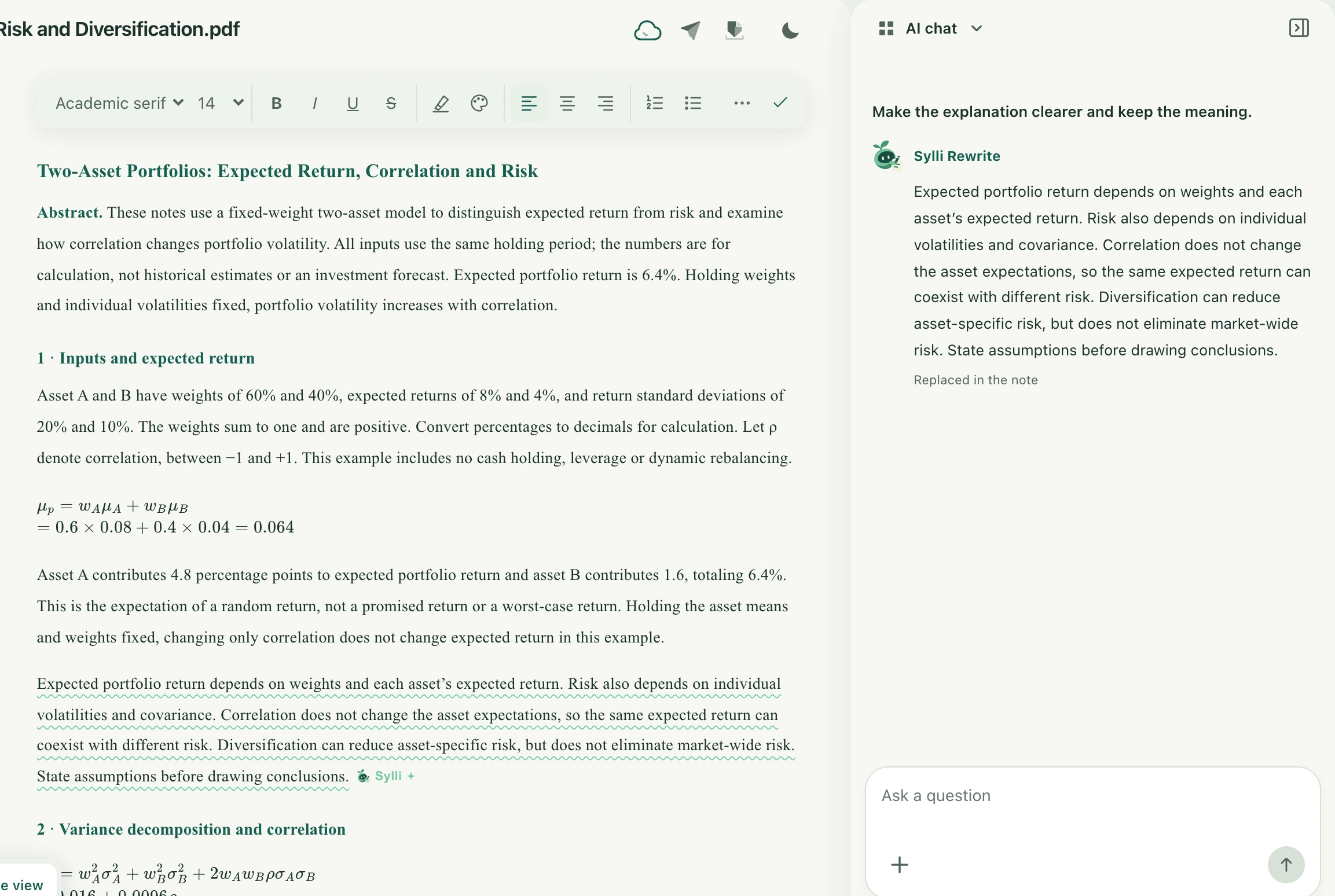
- Write your requirements, such as “Keep every number and qualification, use clearer English, and retain technical terms.” Send and wait for the suggestion. Avoid editing the original selection while the rewrite is in progress.
- Compare the suggestion with the original for facts, variables, causal relationships, and tone. If needed, choose the adjustment action, add instructions, and generate another suggestion.
- When satisfied, confirm replacement. Only this action writes the suggestion back into its original location. The note shows the replacement and retains the Sylli Rewrite marking.
Saving and undo
Replacement uses the file note’s automatic saving process. A spinning toolbar icon means changes are pending, and a check appears only when confirmed. If replacement is complete but saving is not, resolve saving before leaving. The replacement enters this editor’s undo history, so use Undo to revert it. It does not create a separate copy of the entire file.
Why the action may not appear
The selection must be inside the current file’s notes, within one paragraph, and contain no image or noneditable object. Overly long selections do not show the action. Text already marked as a Sylli Rewrite cannot directly use the same action again. If the note or version has changed, select the text again before submitting. An old suggestion cannot replace content after changing file or account. AI wording can change subtle meanings; check technical content before confirming rather than treating the draft as verified fact.