
Syllink supports reading PDF, Word, and PowerPoint materials. Uploaded files can be used in a class or opened independently from your materials list. Selecting a file opens its standalone reader; selecting a class record opens that class. Even when a file has been used in a class, you do not need to open the whole class to consult the file alone.
Watch the walkthrough
This video is currently unavailable. Open video in a new window
Preparation and file limits
Check that the file opens normally and that you have permission to use it. The add-materials dialog accepts .pdf, .doc, .docx, .ppt, and .pptx, up to 30 MB per file and 10 files per batch. This covers documents and presentations, not arbitrary file types. Keep the original for complex Office files so that you can compare it if layout or reading problems arise.
Add materials and begin reading
- Select Add courseware in the classroom’s Lesson materials. To add subject materials, use that subject’s add action instead.
- Choose the upload area to select local files, or drag them into the drop area. You can also search your existing courseware by name and select files from the list below.
- Check the pending files, then add them to this class. A dialog opened from a subject instead adds them to that subject. Wait for adding, uploading, and reading feedback to finish.
- Select a file in the list to read it. Select another file to switch in a class. Selecting a file directly from the external materials list opens its standalone reader.
- Expand the courseware outline above the reading area to choose an available section, or use page navigation and zoom. Outline positions depend on the actual file, and not every file has a complete section list.
One file, separate note documents
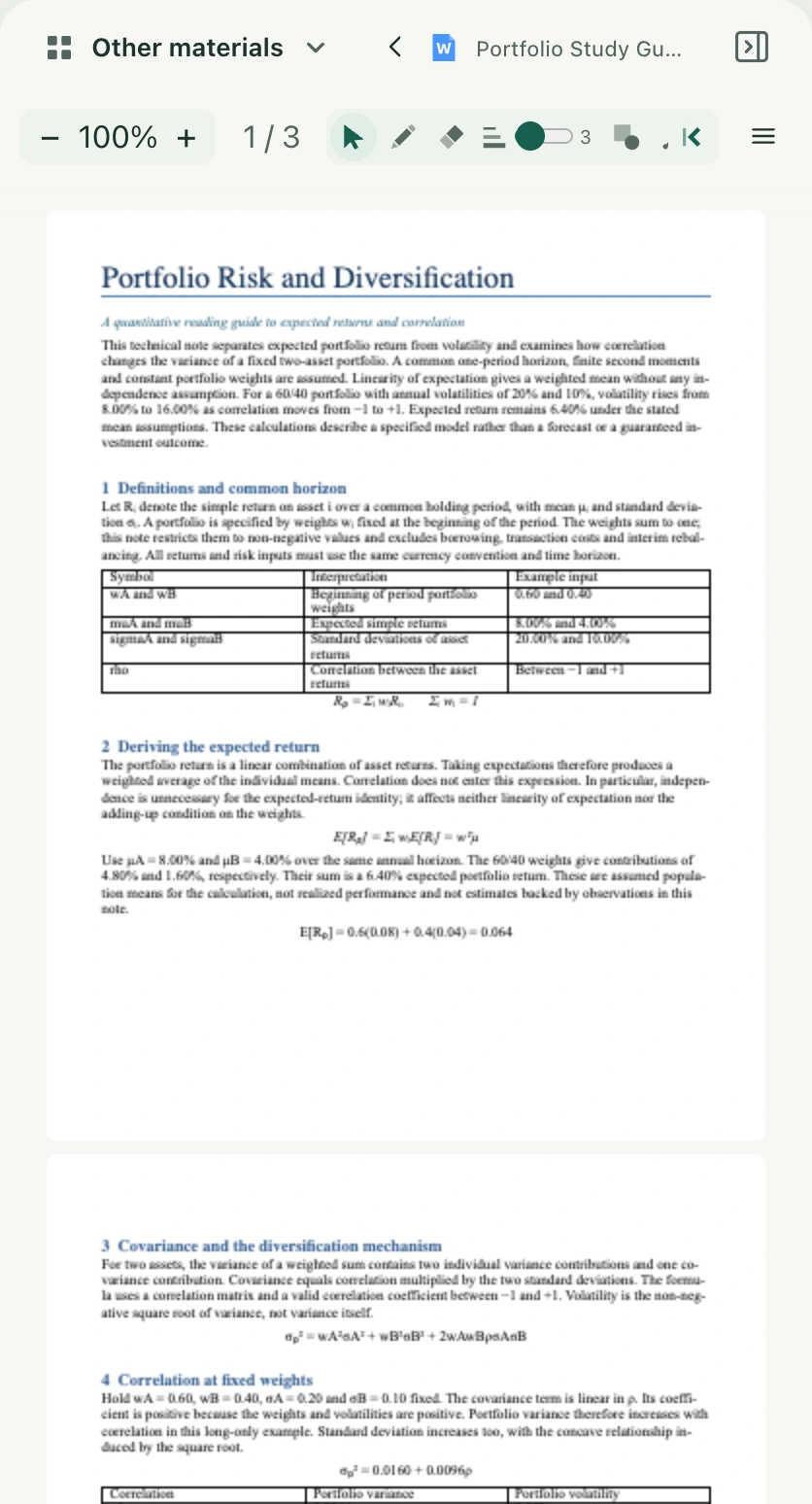
When a class and standalone reader open the same courseware, page drawing, highlights, lines, and caption margin annotations are shared for that file. File notes remain file notes, while handwritten class notes save per class. A different file with a similar name, or a replacement source file, should not be assumed to share the old file’s annotations.
If formatting or display looks wrong
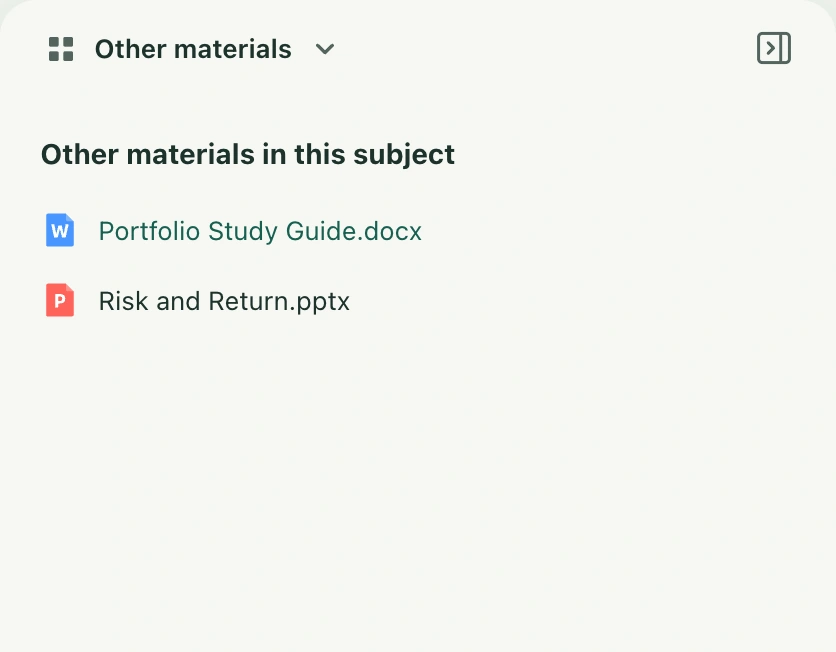
Wait for loading and check that the source file is complete. Follow the upload dialog’s actual retry message after failure. Word pagination in a browser can differ from other software. Layout changes may temporarily affect navigation or drawing synchronization; follow the reload instructions instead of treating shifted annotations as correct source positions. Image-only scans may provide insufficient readable text for AI organization. To compare another file, open same-subject material under other materials in Triple view. That panel offers reading and drawing, rather than another AI selection control.