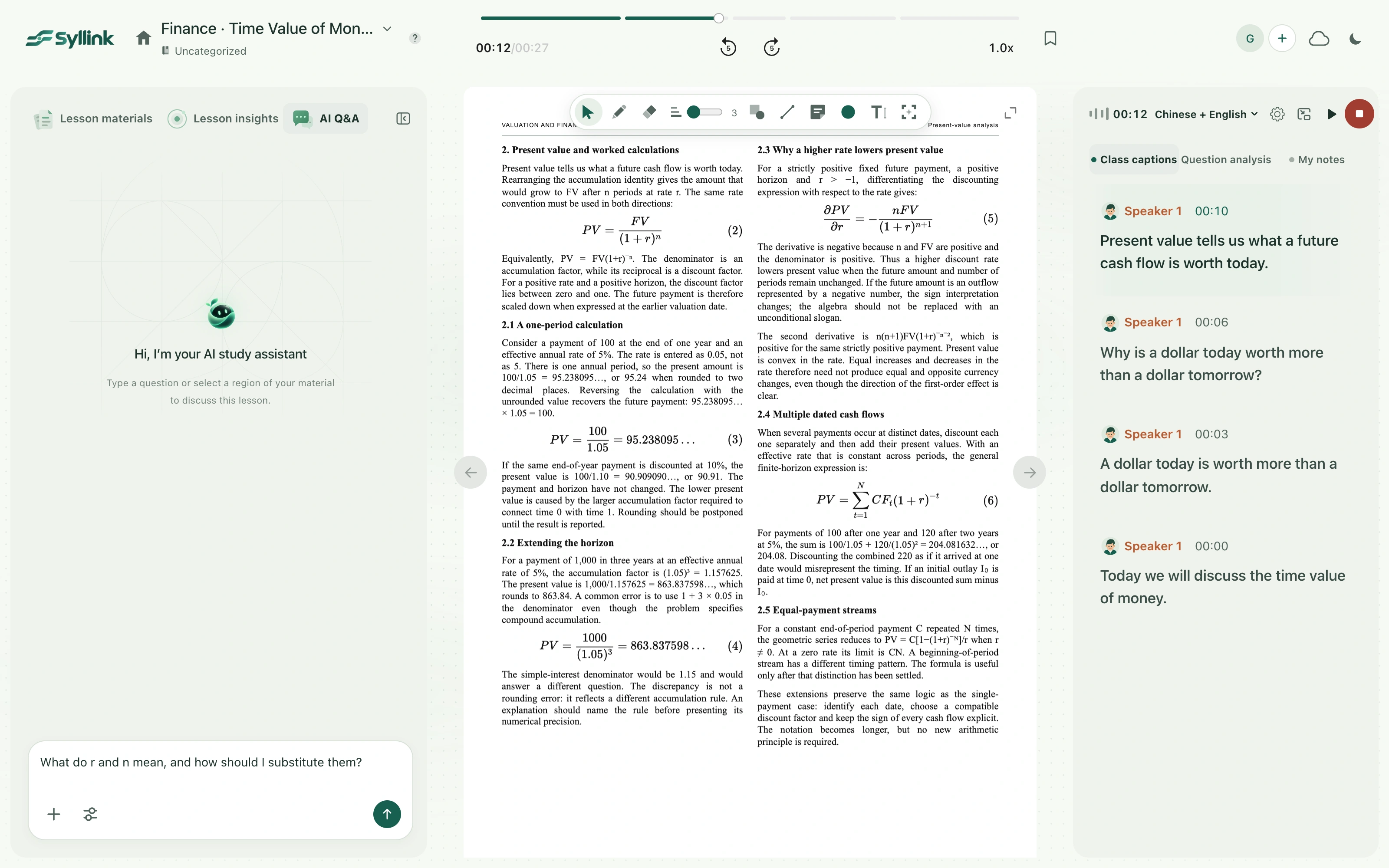
Classroom AI Q&A helps with specific questions that arise while listening or reading: explain a concept, define a symbol in a formula, or give an example using the current class. It uses the available class context. A precise question makes it easier to check whether the explanation addresses where you are stuck. Continue the same conversation to ask for another way of explaining an answer.
Watch the walkthrough
This video is currently unavailable. Open video in a new window
Before you begin
Sign in and open your own class. Wait for the class and materials to load. Open the relevant file and page before asking about courseware; check that the corresponding captions have been recorded before asking about the teacher’s explanation. Add any uncaptured board content, unread images, or unrecorded speech to your question. Do not assume Sylli has seen them.
Send a question
- Select AI Q&A at the top of the materials panel. Write a question in Ask a question, such as “What does r mean in this page’s formula? Explain using the current materials.” The input may also appear below the central reading area.
- For images, select the Add image plus button and choose PNG, JPEG, or WebP files. You can also paste or drag in images. Add up to five at a time. Wait for their thumbnails, check the contents, and remove any incorrect images.
- Add your question about the images, then select the send arrow. Press Enter to send or ShiftEnter for a new line. If using an input method, finish composing text before sending. Adding an image alone does not send the question.
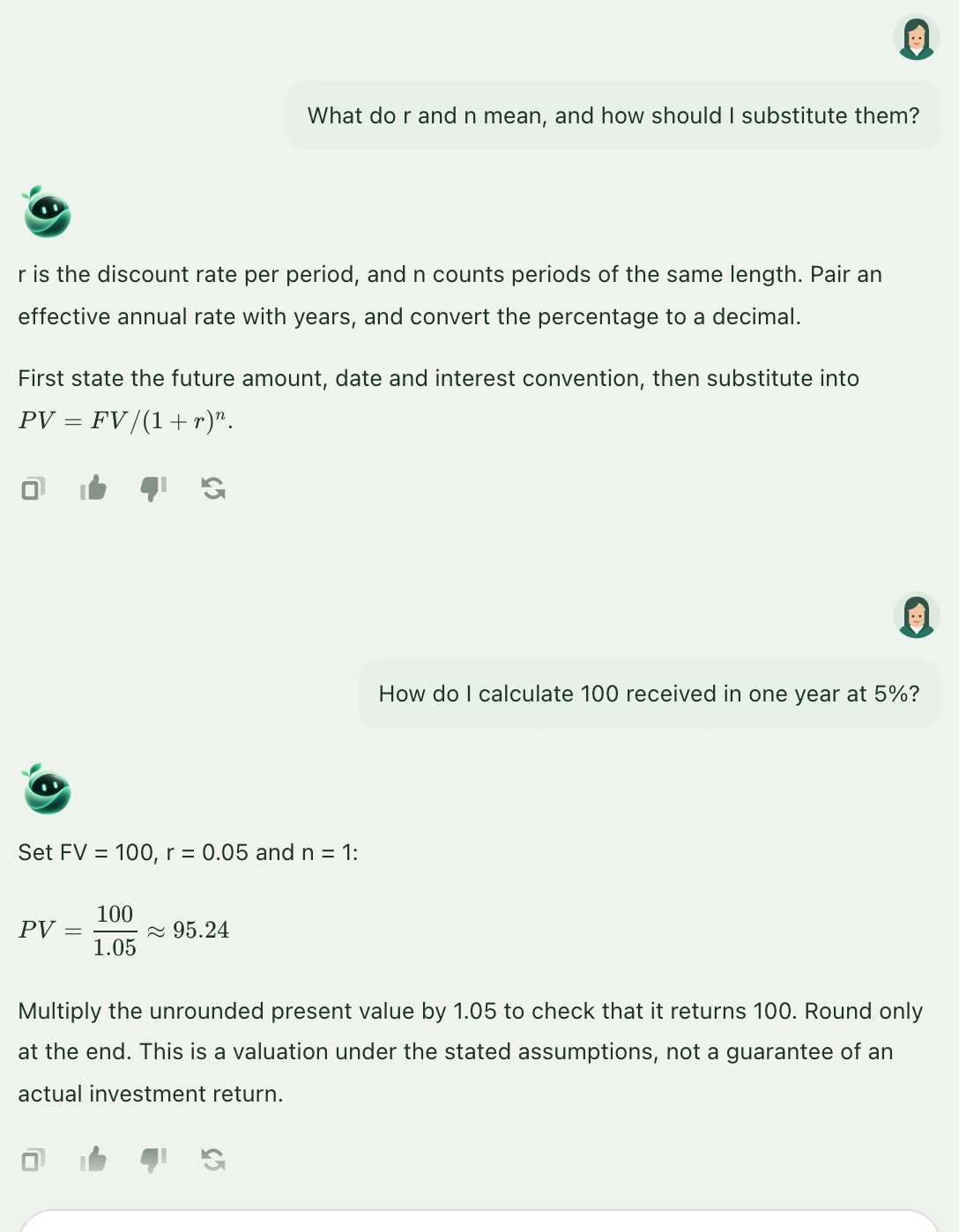
- Wait for the full response in the conversation. After reading it, ask a follow-up such as “Why is it calculated this way?” or “Can you use a simpler example?” You can also point out conditions that need to be checked again.
- To keep a useful conclusion, copy it from the answer into your own notes and add your understanding. Retry the particular question that was unfinished or needs another explanation.
How answers connect with notes
Text questions and questions about selected images join the same conversation in the current class. Follow-ups can use that conversation’s context. Fully completed text exchanges can also become sources for Smart Notes, but still need checking. The current chat display is not a complete chat archive that can be reopened on every device. Put important conclusions in your own notes, and keep anything you need before changing class or account.
If sending is unavailable or the answer is interrupted
Check that you have entered text or added usable images, that images have finished processing, and that the previous request has completed. Resolve any class-saving or expired-sign-in message first. If the send has not been accepted, your input stays in the composer. If the question has entered the conversation but its answer is unfinished, use that exchange’s retry action instead of repeatedly resending. State the original conditions clearly for formulas, numbers, or material details, and check them against the source one by one.