When reading courseware or a paper, select a formula, chart, or passage and drag its screenshot into the AI composer to ask about that specific area. This keeps the question beside the content AI needs to inspect. The selection is an image; it does not turn the original file into editable text. These steps apply to the standalone material reader.
Watch the walkthrough
This video is currently unavailable. Open video in a new window
Before you begin
Sign in, open your own file from the materials list, and wait for the target page to display fully. Select Triple view at the bottom to show courseware, file notes, and study tools. Choose AI chat from the menu at the top of study tools. Zoom until text, formulas, and legends are legible instead of capturing an entire page with unreadable detail.
Drop the selection into the composer
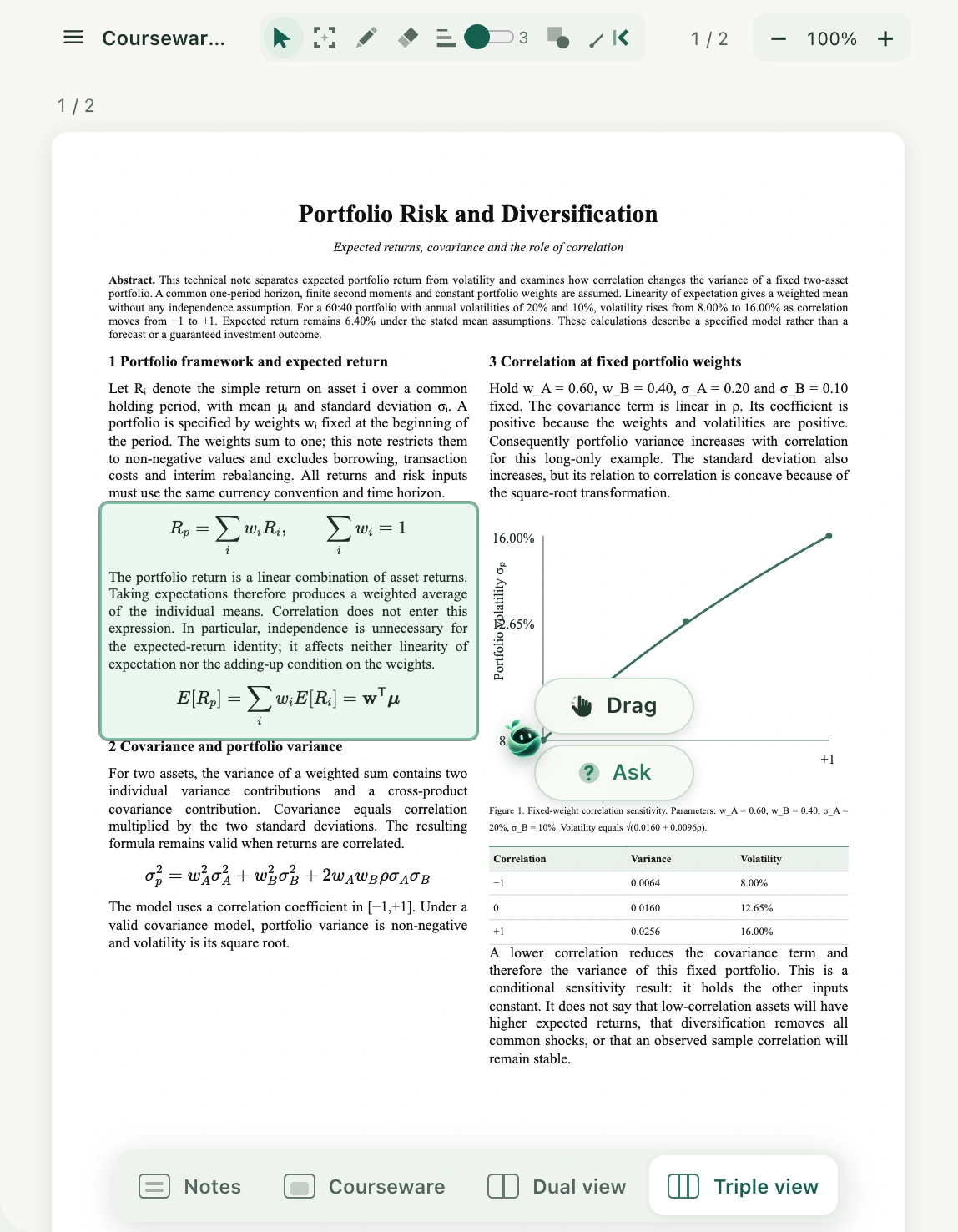
- Select the screenshot selection icon in the toolbar above the courseware. Hover over it to see its name. It is unavailable until the file has loaded.
- Drag a rectangle over the content to explain. Release and wait for the screenshot. Drag and Ask appear beside the selection.
- Hold Drag and move the screenshot into the AI composer in study tools. Release when the target area responds, rather than over the chat history or blank space.
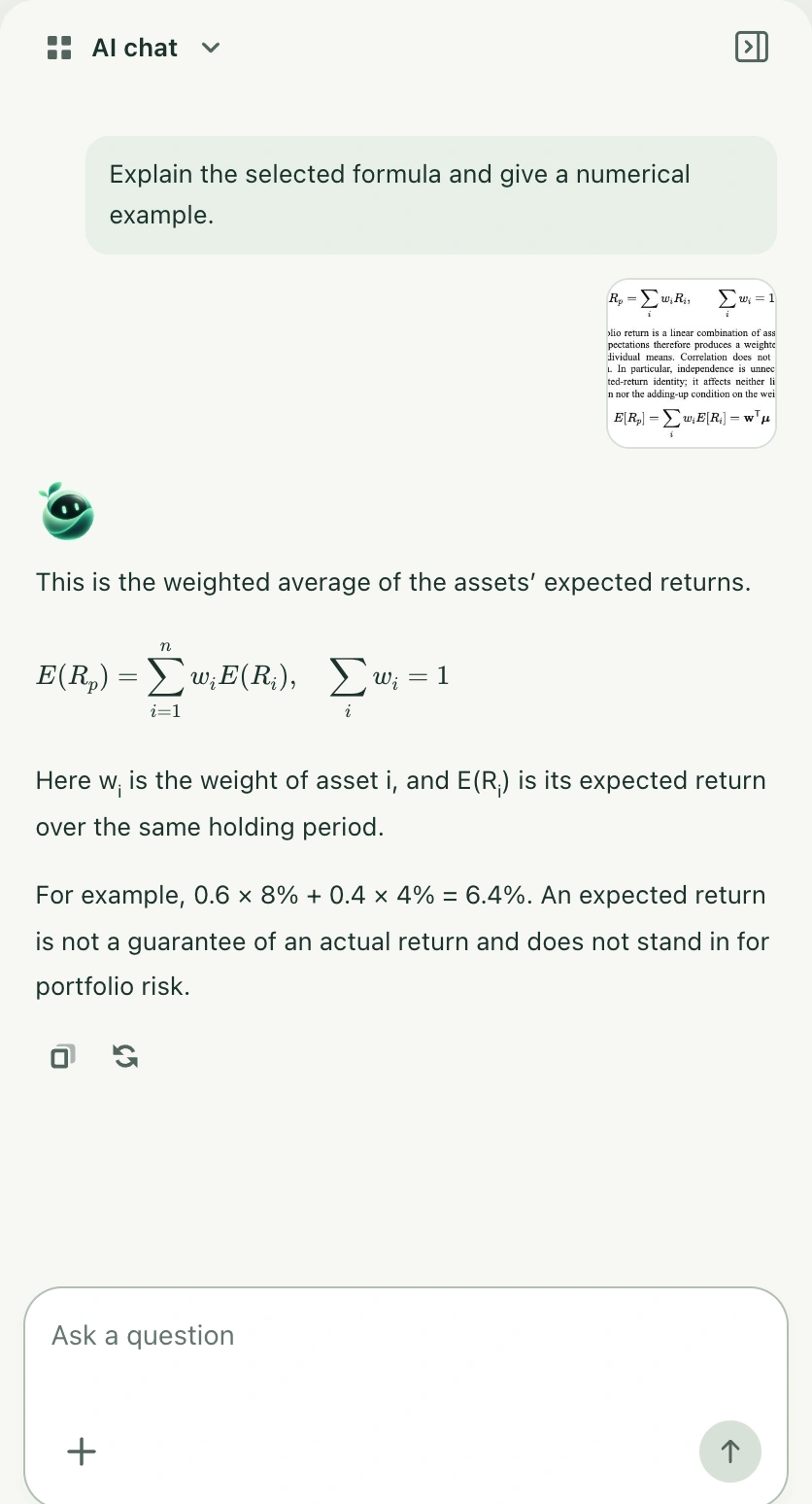
- Check that a screenshot attachment appears, then write a specific request, such as “Explain each variable, then work through an example with numbers.” Select Send and wait for the response.
- For a quick explanation, select Ask directly. This sends the screenshot with a preset explanation request. Use dragging when you want to compose your own question first.
Answers and saving
The explanation appears in the conversation and is not automatically written into file notes. To keep it, organize the useful parts in this material’s notes and check saving. Dropping a screenshot into the note body inserts an image; dropping it into the AI composer prepares a question. These are separate actions.
If the drop does not work
Check that Triple view is active, AI chat is selected, and the screenshot has finished. Select again after changing files, reloading the page, or moving the screenshot area. A very small area does not create a usable screenshot. Keep axes, units, and legends for complex charts. AI can still misread symbols, so check important conclusions against the source. If the image is unclear, try a smaller selection instead of relying on an incomplete explanation.